

December 25th
This article has been viewed 113021 times. You can leave a response, or trackback from your own site.

Merry Christmas and Happy New 2010.


STEP 2
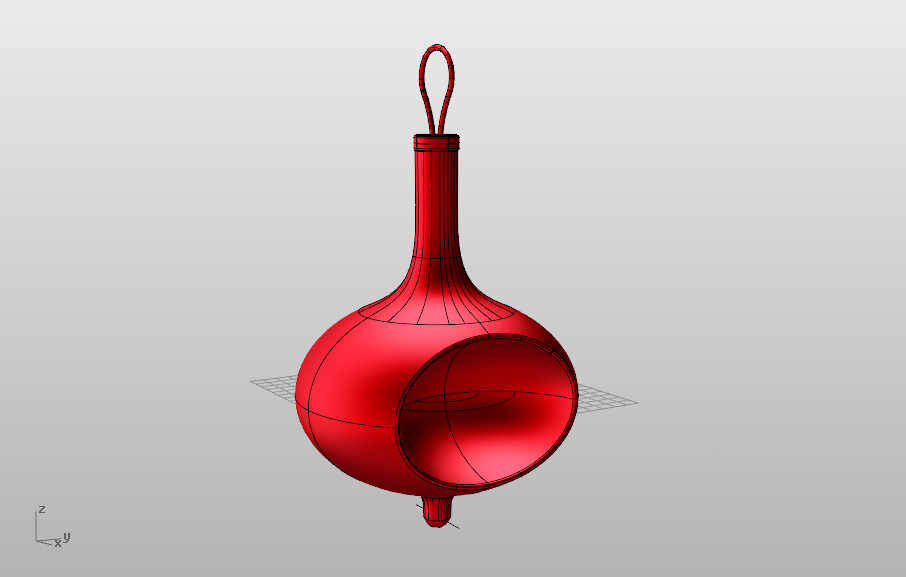
Second Decoration
Ok, in this step we will be creating another decoration. This way you can actually try any of the shapes your solids offer you. So, using Ellipsoid command we will create an ellipsoid starting from Top viewport and setting its two radii to 10 units and the third one to 7 units (just follow the grid to make it easier)
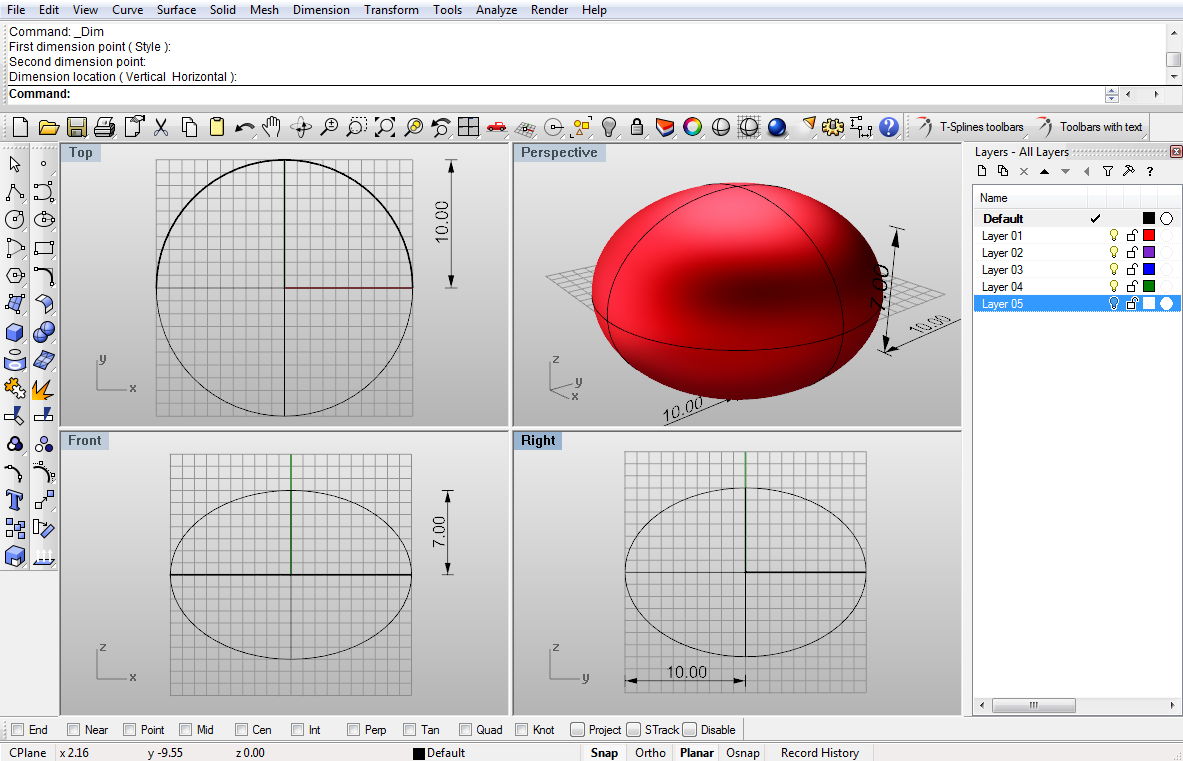
Image 26
Create one more Ellipsoid, and make its first two radii 7 units, and for the third one put 5 units as radius:
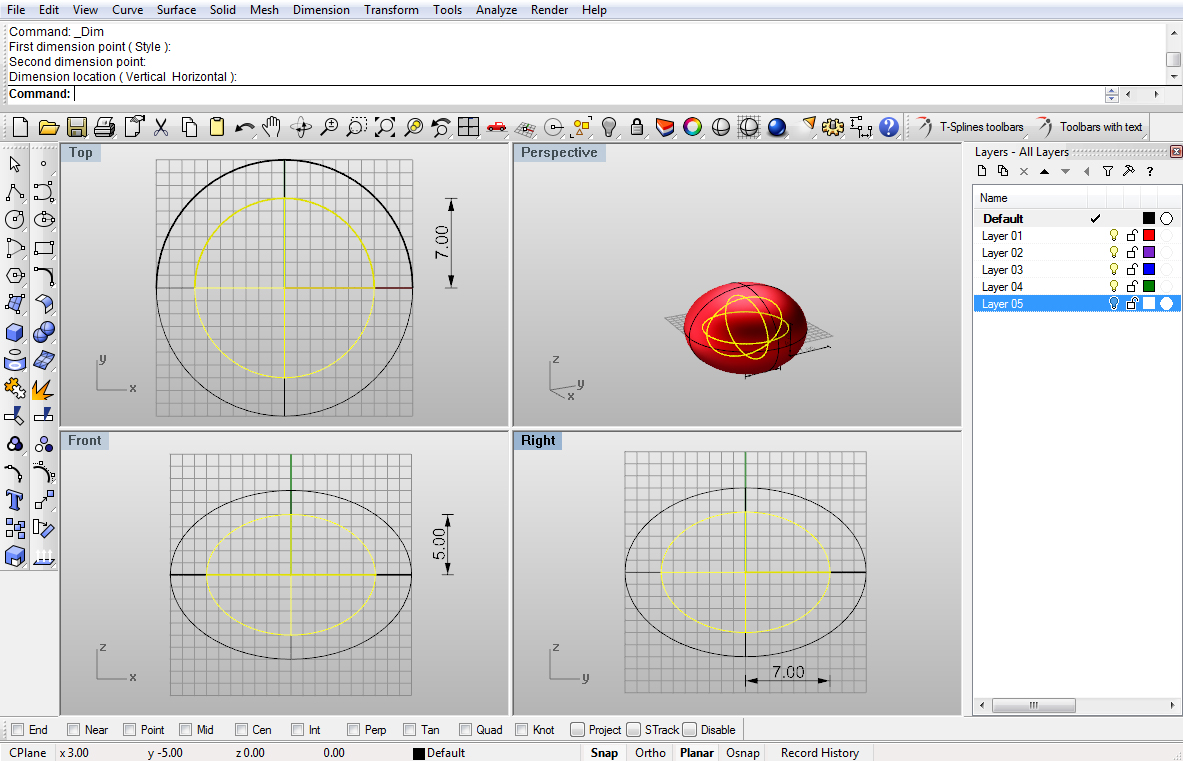
Image 27
Now, move the smaller ellipsoid right by 8 units having it positioned like on the image below:
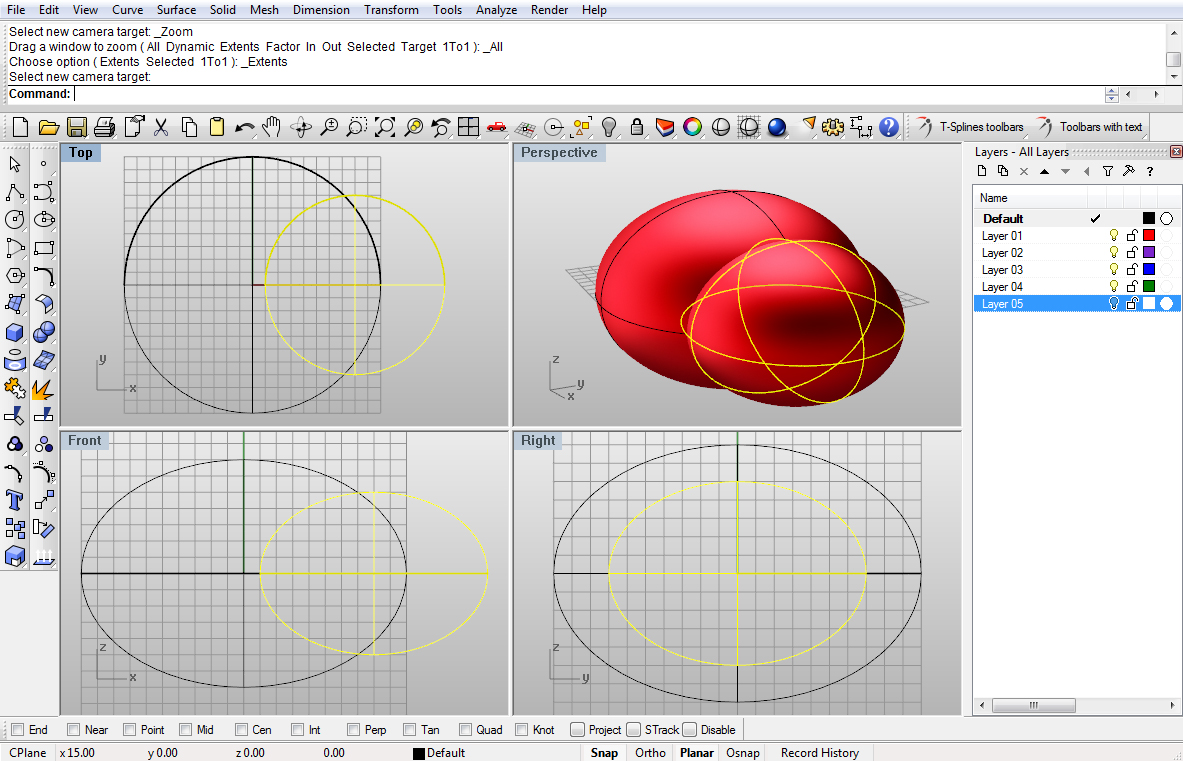
Image 28
Using Mirror command mirror it along the y axis to the left:
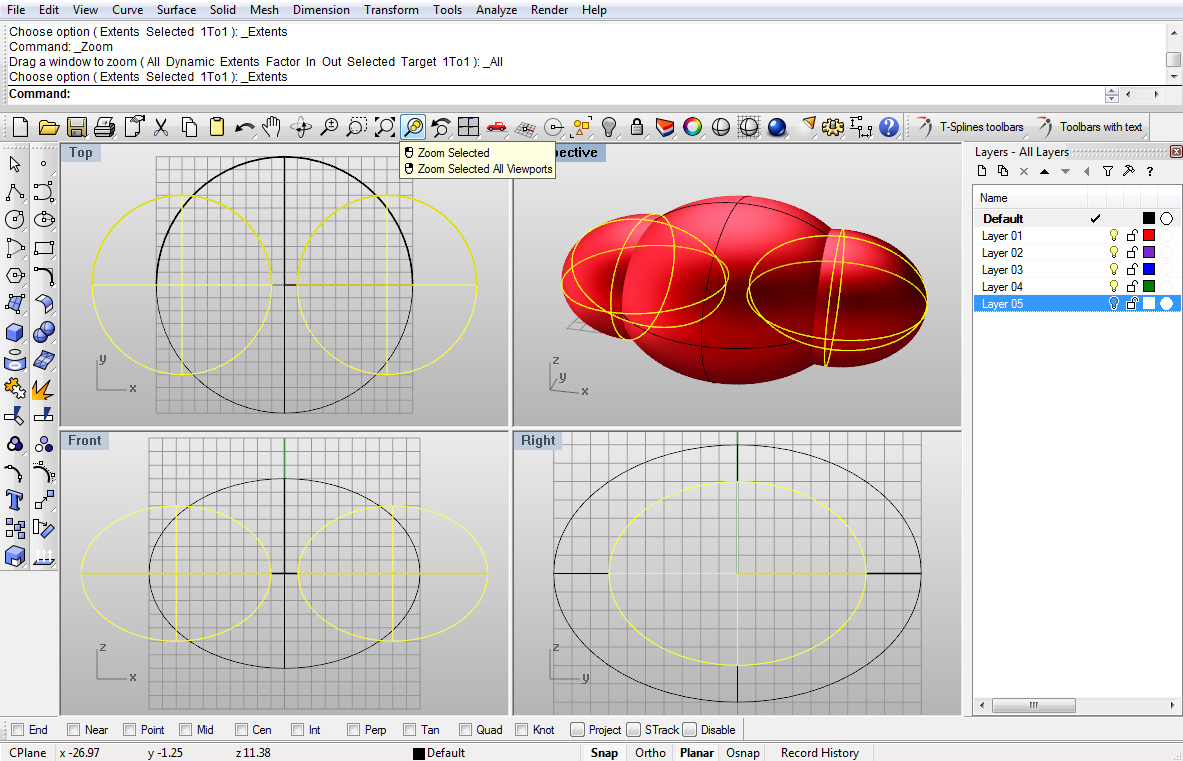
Image 29
Using BooleanDifference command make holes in the bigger ellipsoid:
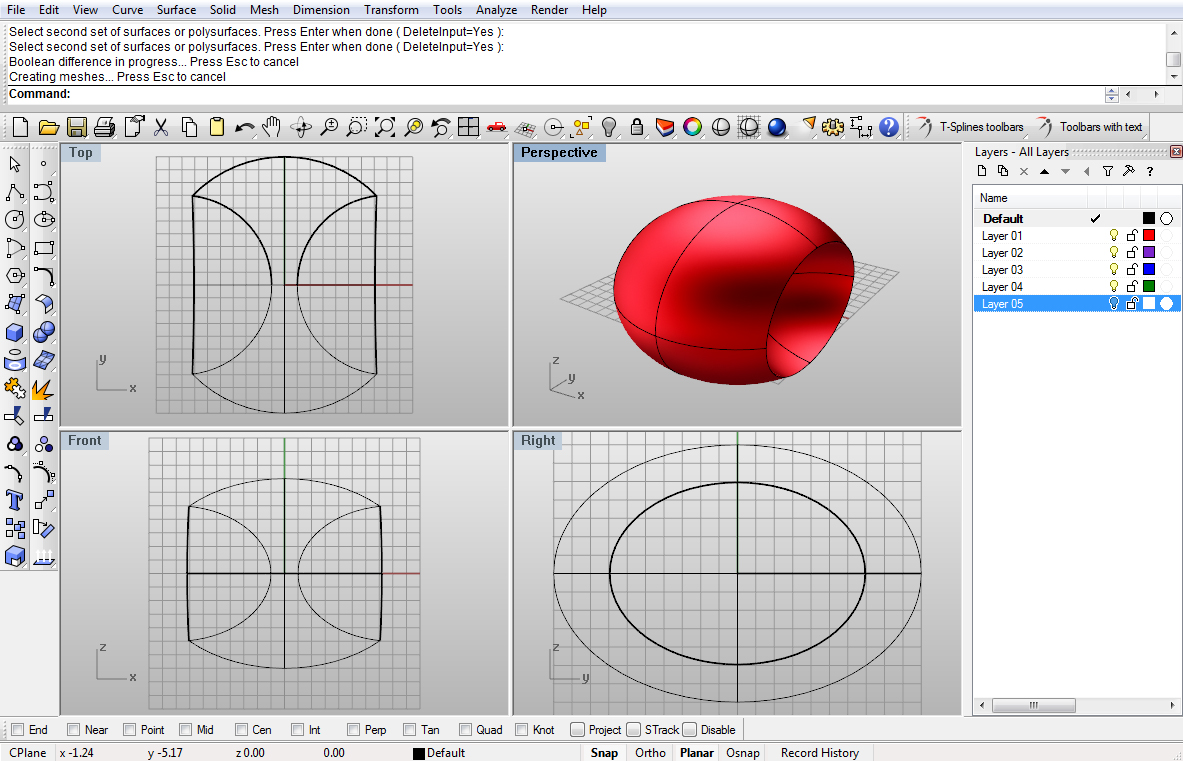
Image 30
Now, using FilletEdge fillet the two edges with 0.2 units as radii:
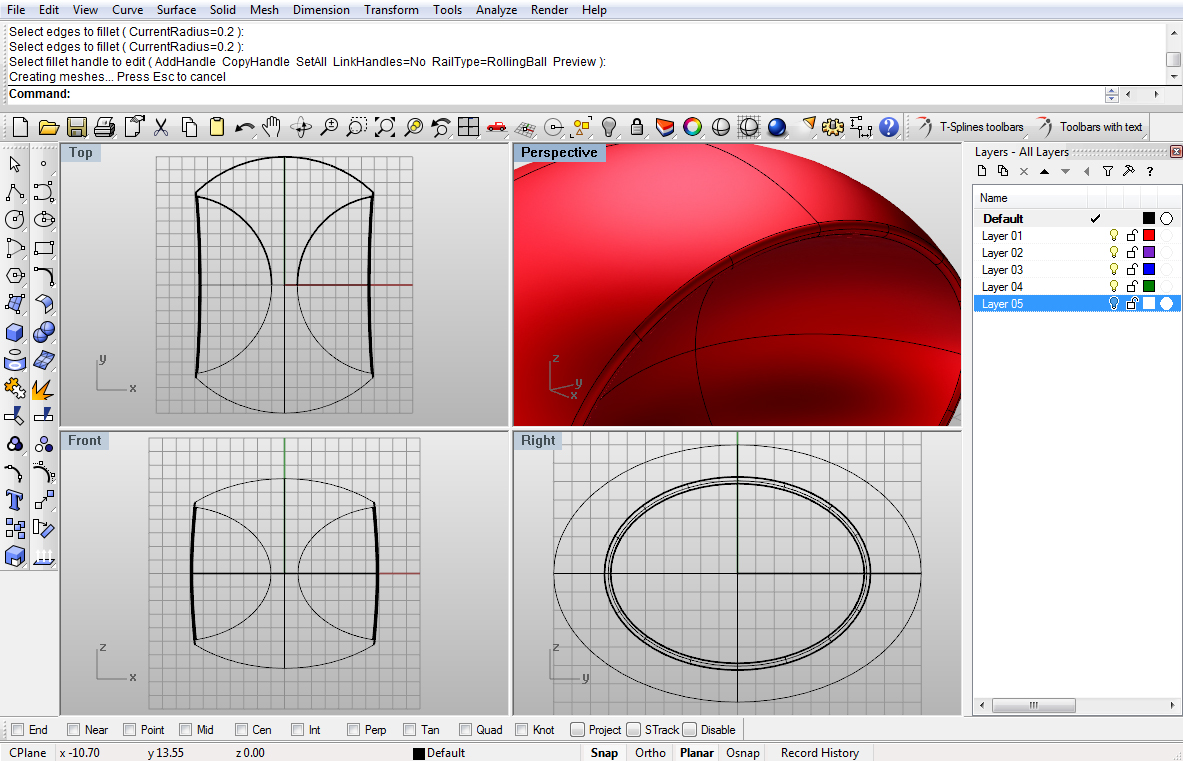
Image 31
With Circle command we will create another circle from top viewport. This one will have 5.5 units radius:
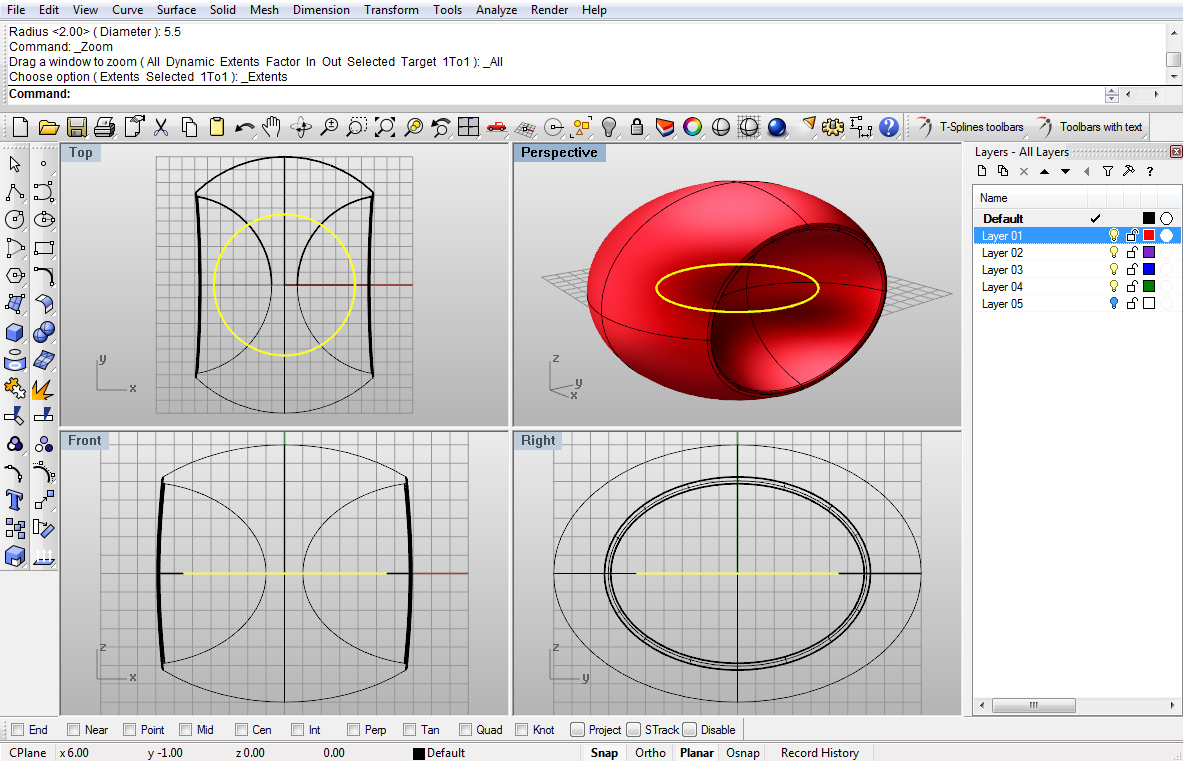
Image 32
Using Project command like in the Step 1 we will project this circle onto our object:
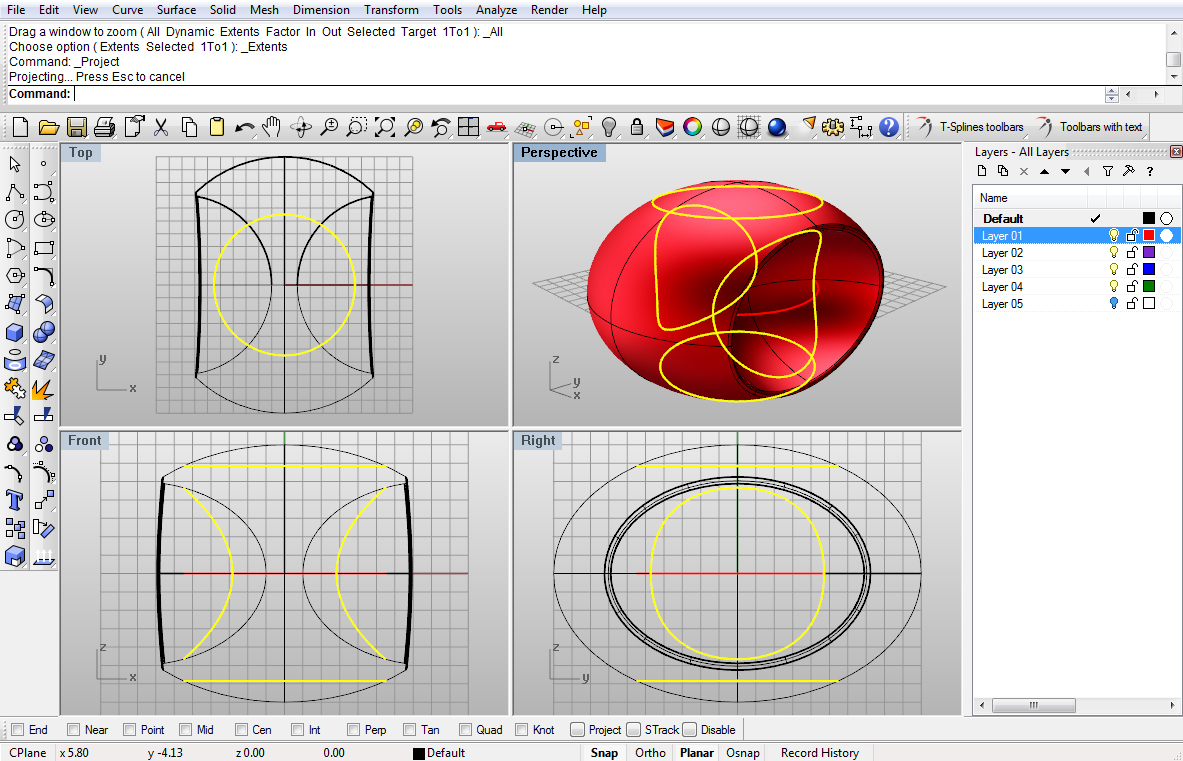
Image 33
Again, using Trim or Split command make a hole on top of the object:
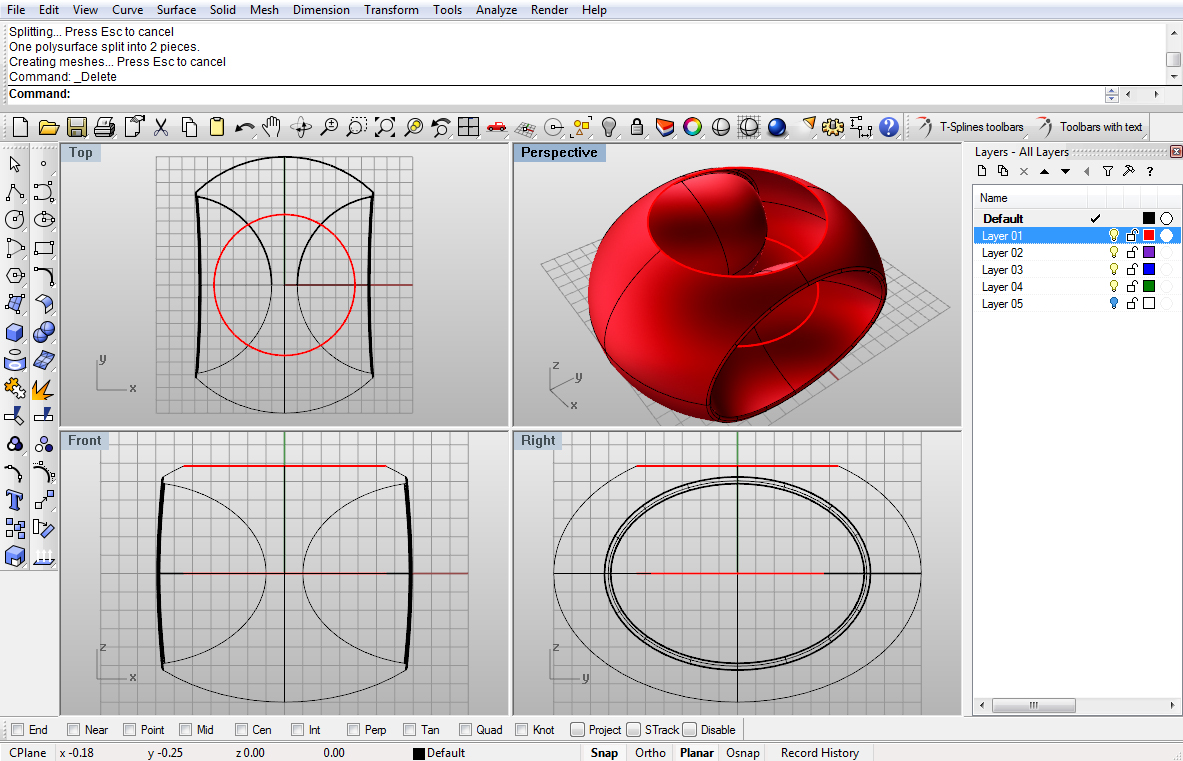
Image 34
From previous step or rather decoration, recreate the wire part, or better yet, copy it:
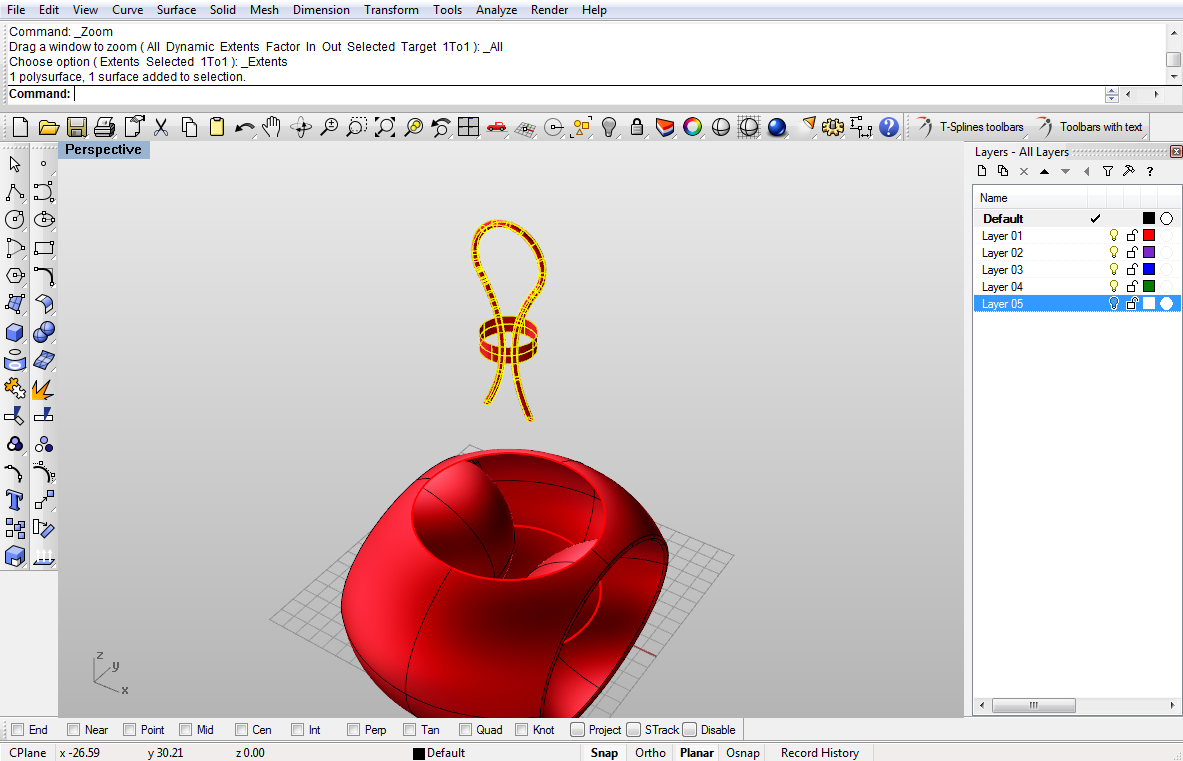
Image 35
Again, using BlendSrf command make a blend surface between the cylinder and our decoration object:
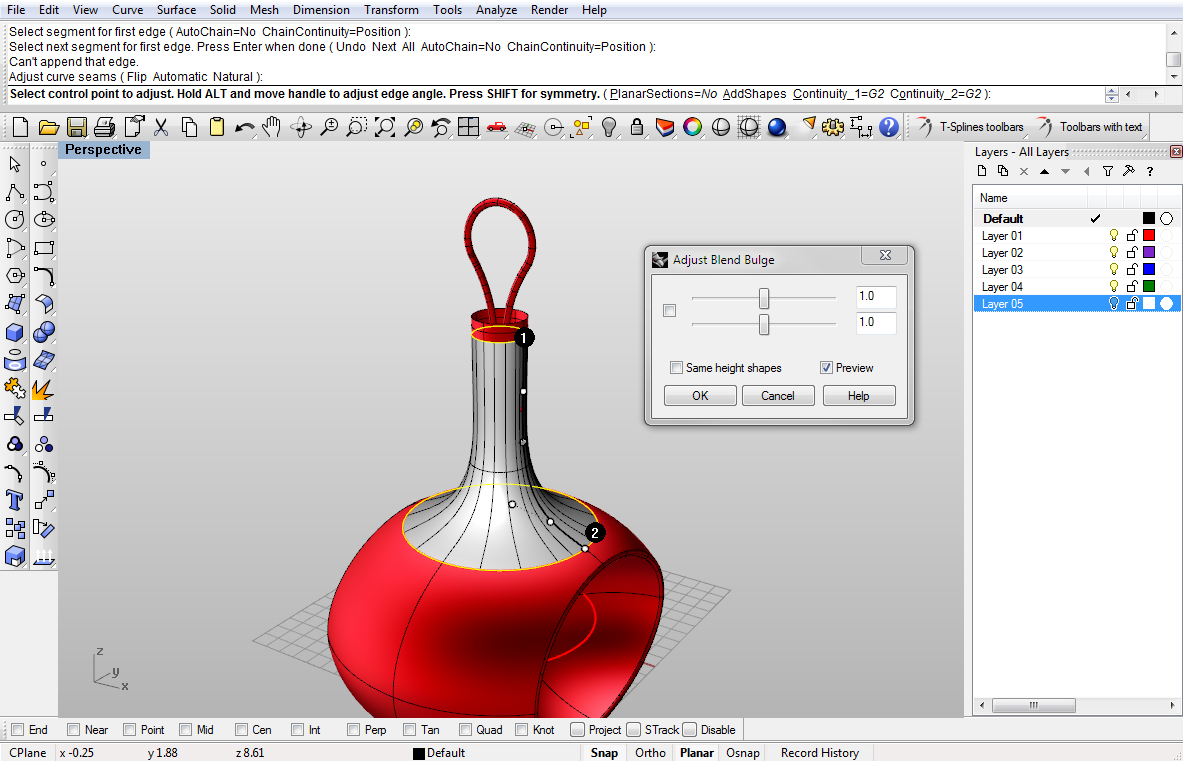
Image 36
If the wire surface goes through this blend sruface, just using Box command create a box that will go through both ends of the wire and using BooleanDifference “cut” it.
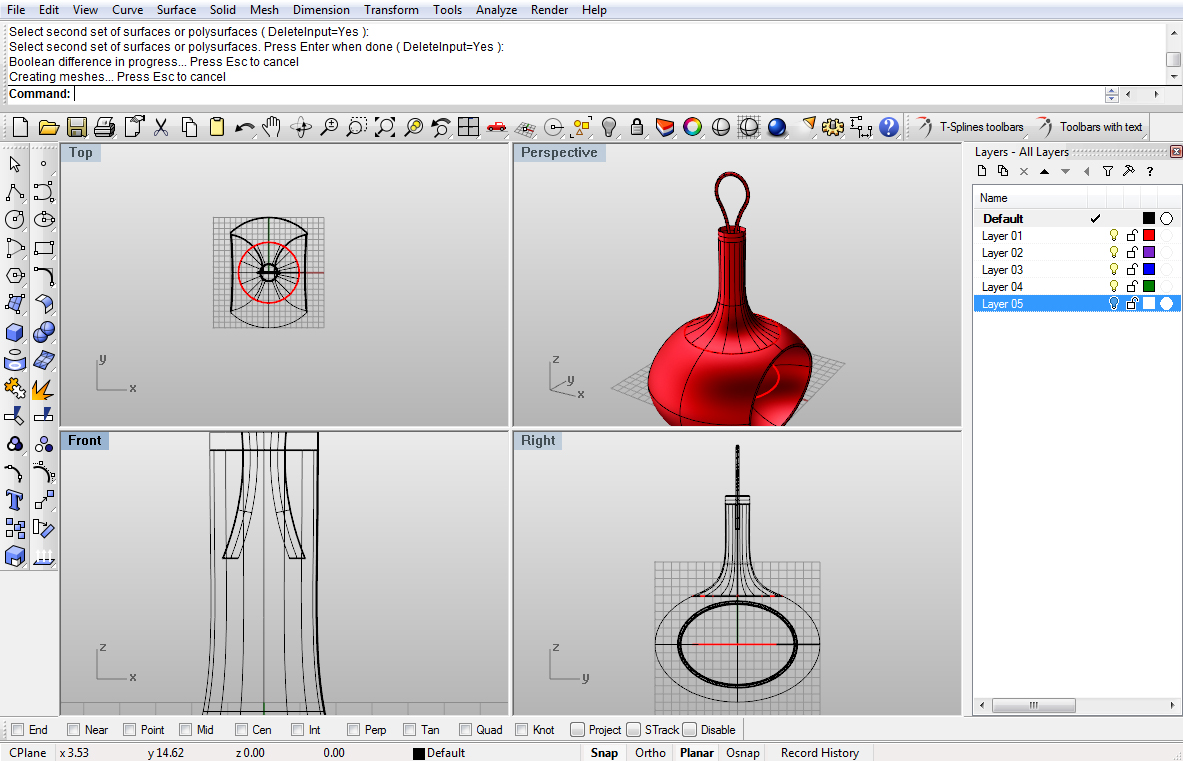
Image 38
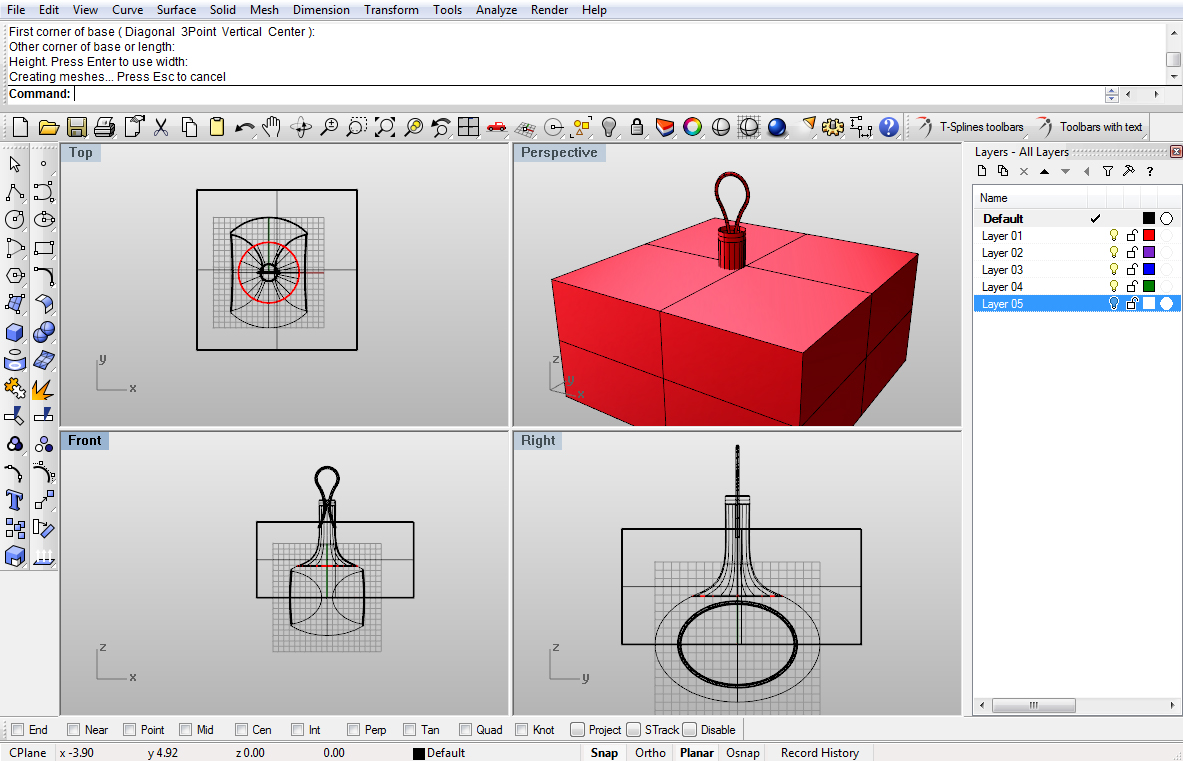
Image 37
Now, you can copy other part of the tip from the first decoration:
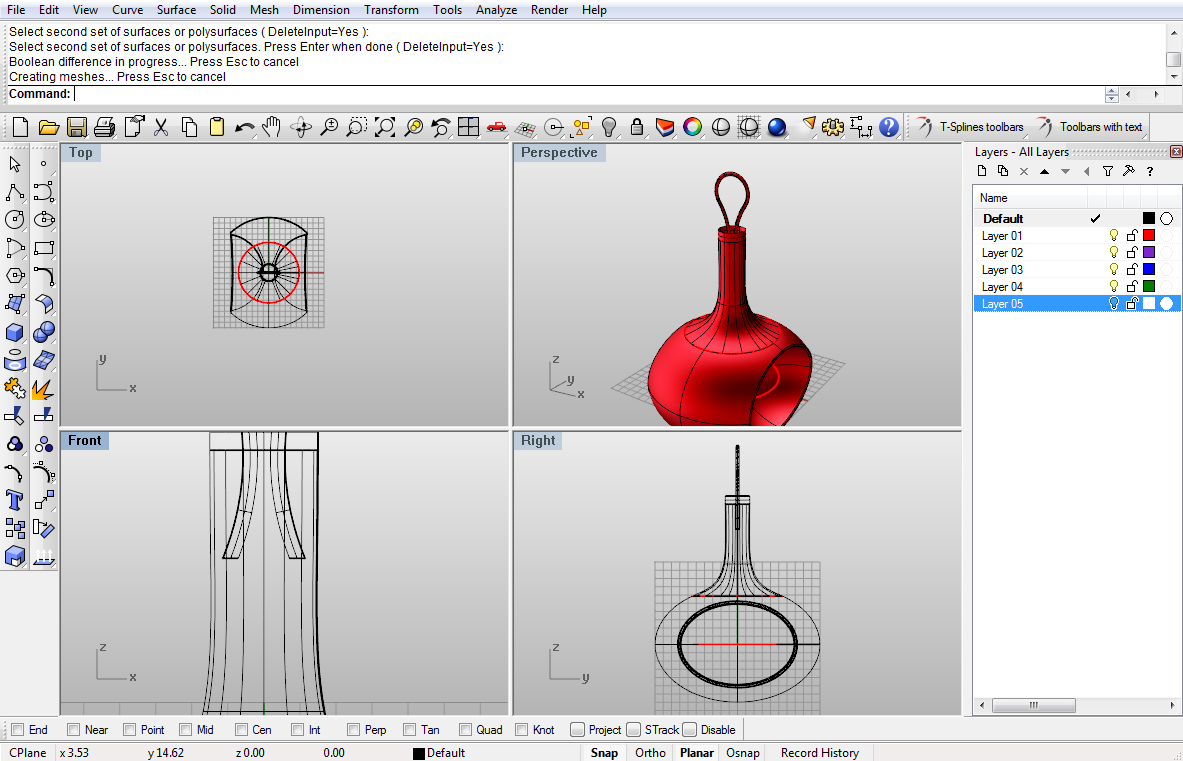
Image 38
Create a Sphere with 1 unit radius, position it like on the image below:
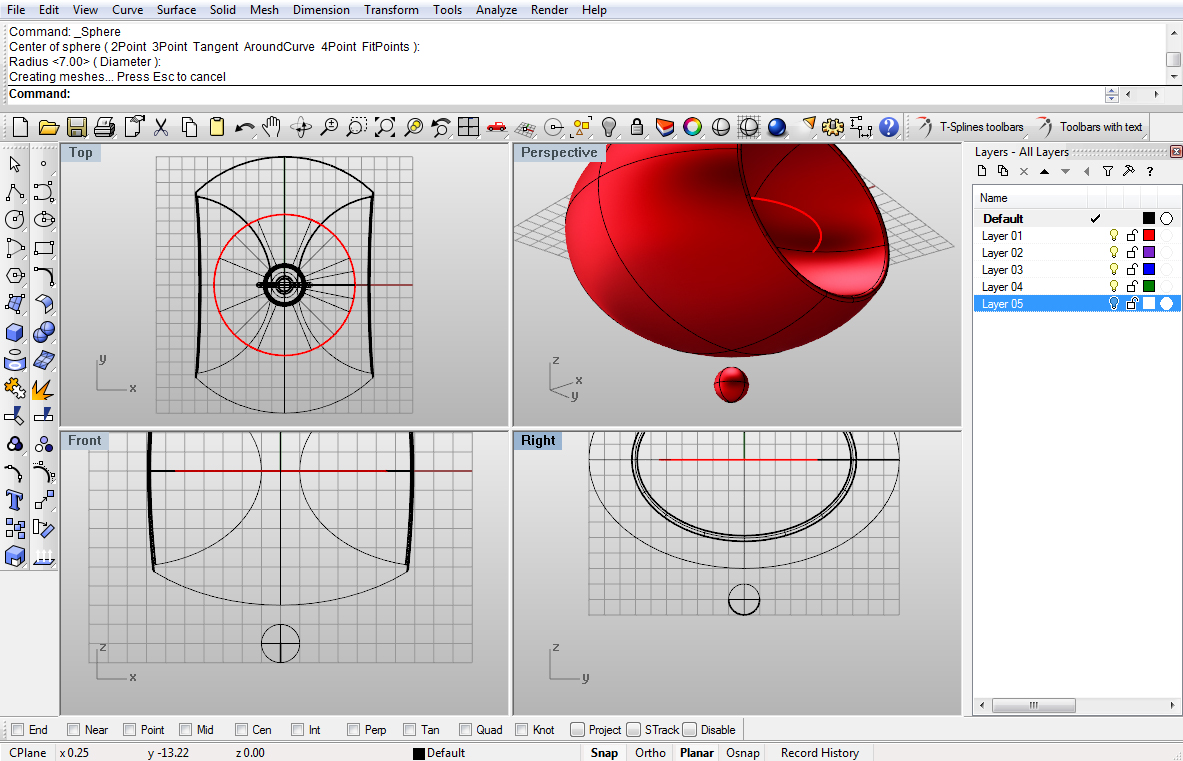
Image 39
We need one circle now. Go ahead and create a Circle with 3 units as radius. Make its center in the origin, and create it in Top viewport:
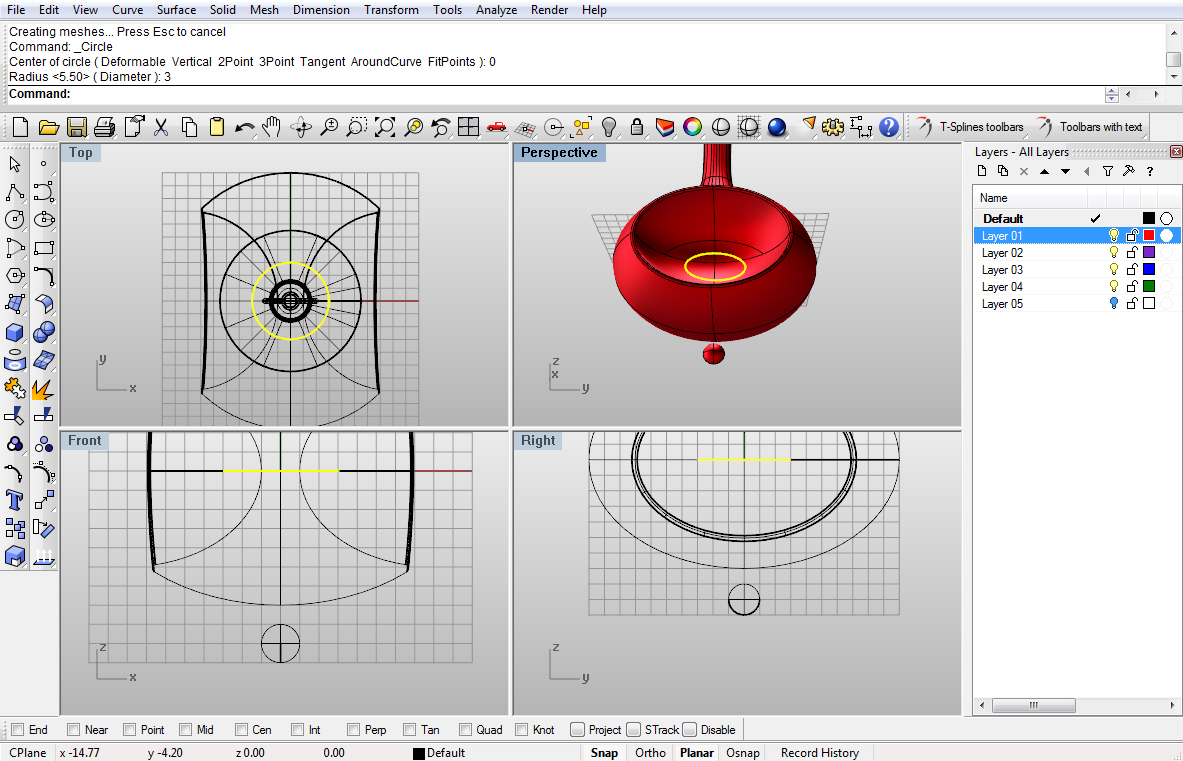
Image 40
Now we need to Project it onto the object, and use lower projected circle to Trim, or Split the object:
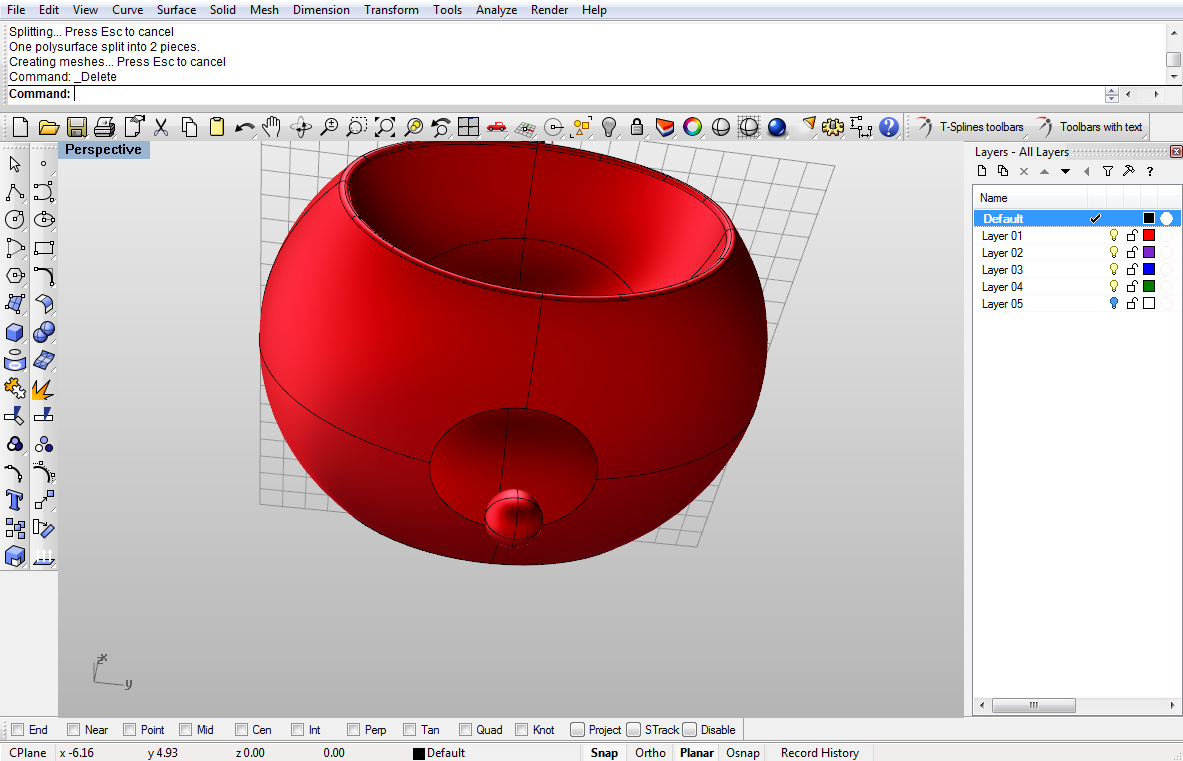
Image 41
Now we need to cut the little sphere so we can make a blend. Using PolyLine we will create a line that goes through the half of Sphere and move it down by 0.2 units.Create it from Front viewport:
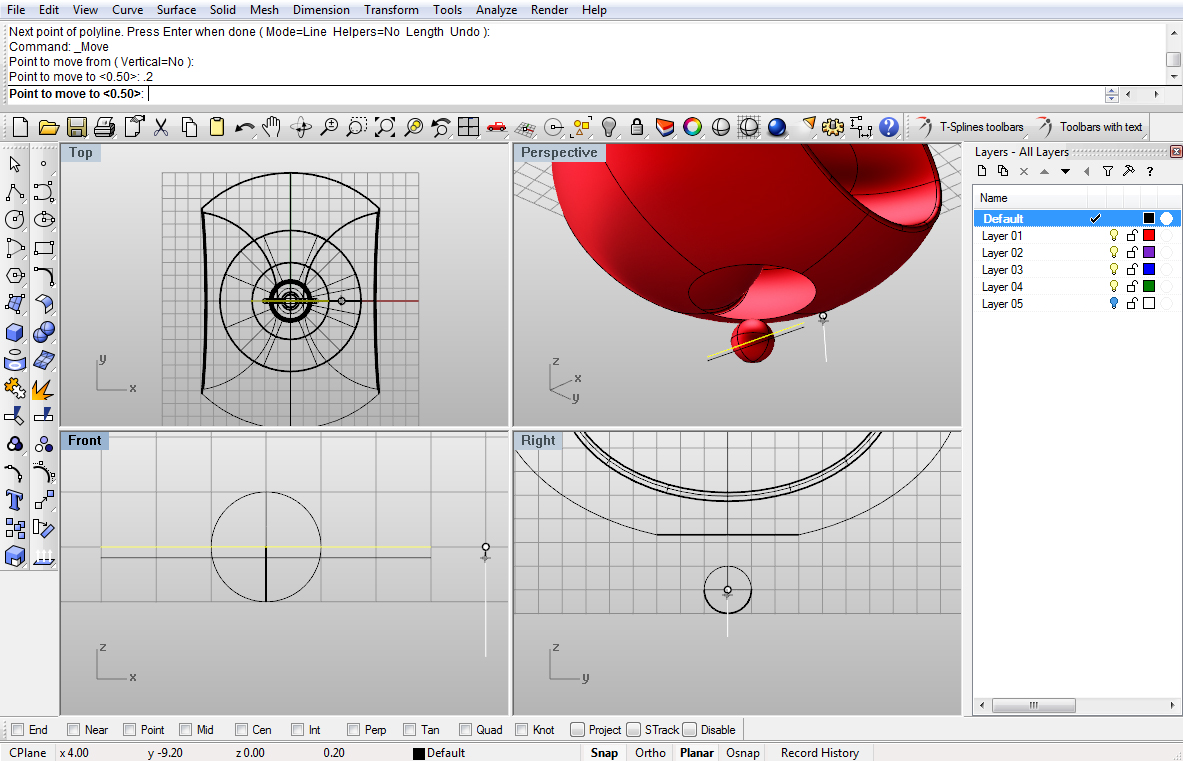
Image 42
Using Trim, we will trim the upper part of the Sphere. To make this work, do the trimming from Front viewport:
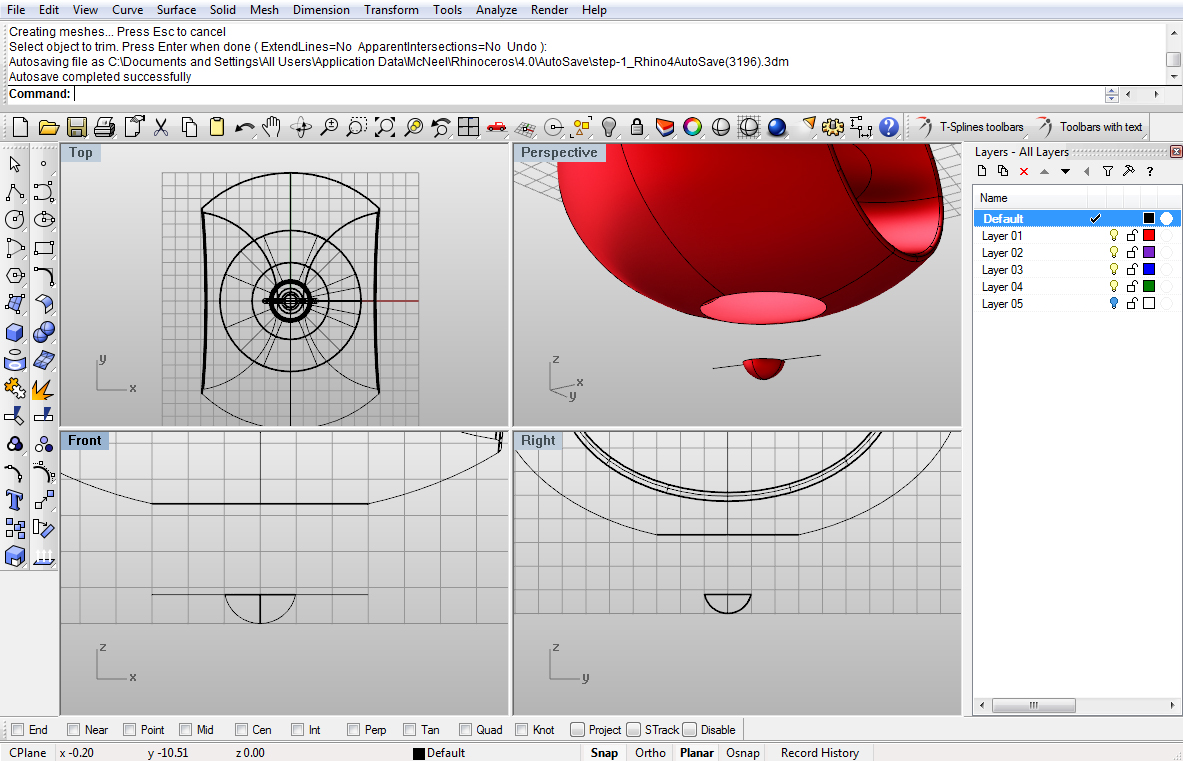
Image 43
Now, using BlendSrf we will blend these two:
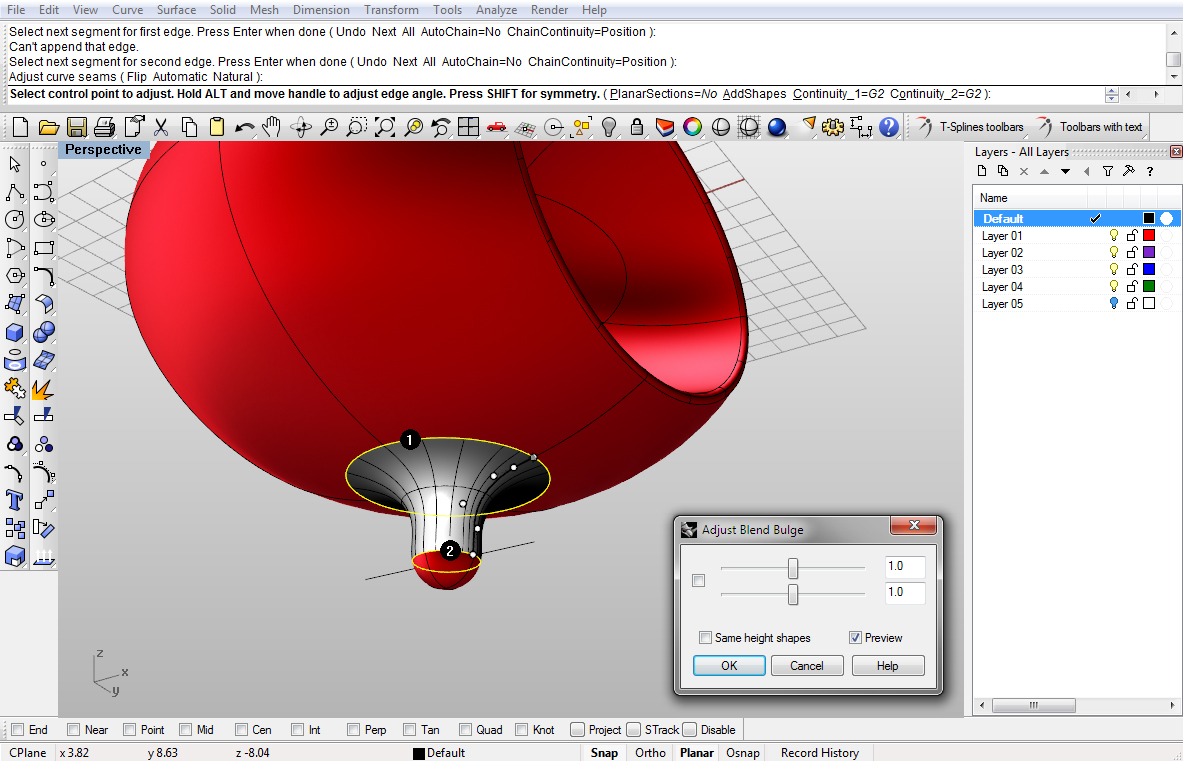
Image 44


Thanks! This is awesome! Do you know how I can make a sphere that has defined sections? For example one that is cut into quarters or thirds? And for each section to have a different color? Should I make three spheres, cut them, and then assemble them, or is there a way for me to do that with a single sphere?
Thanks!