

December 25th
This article has been viewed 113018 times. You can leave a response, or trackback from your own site.

Merry Christmas and Happy New 2010.


Step 4
In this step we’re creating this fourth decoration which is pretty simple as well, like all are, but this one is similar if not the same as the first one.
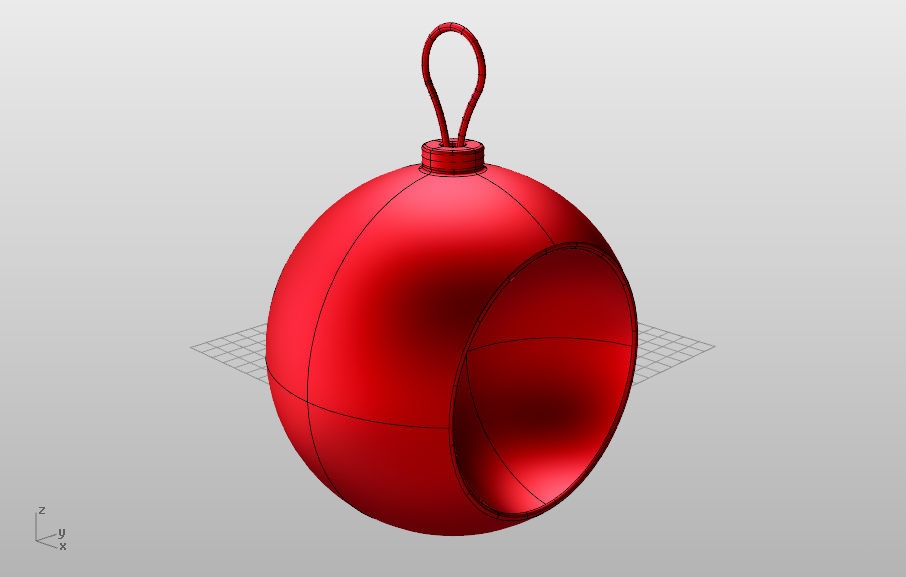
Fourth Decoration
We’ll start this one with a Sphere, oh what a shock, so start creating it and make its radius 10 units and position it in the origin. Just like other decorations.
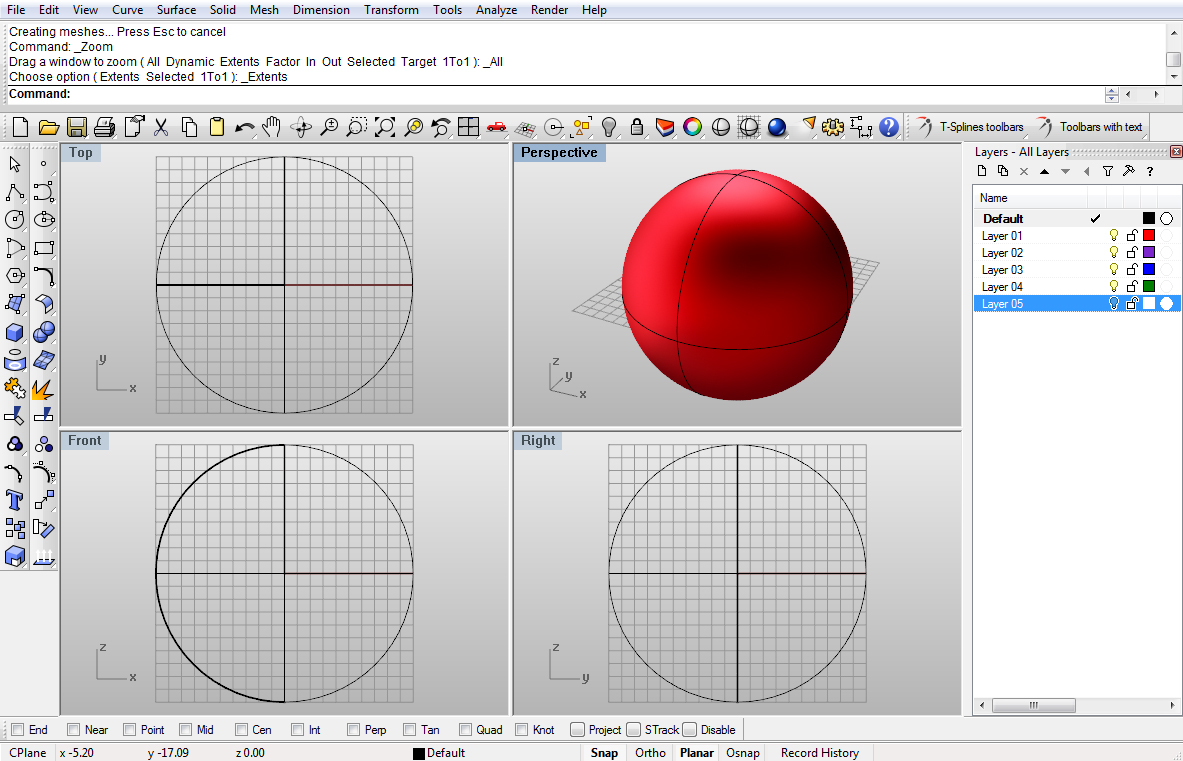
Image 56
Create another Sphere, and make this one’s radius 7 units.
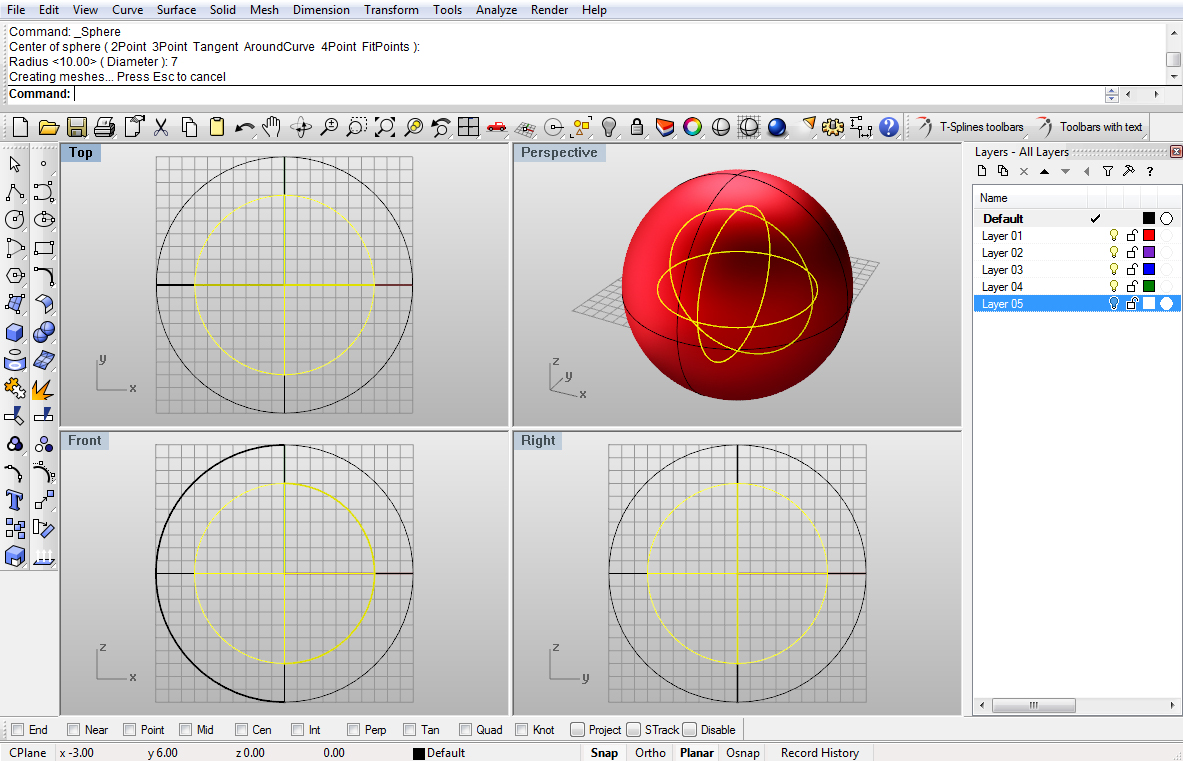
Image 57
Move this smaller Sphere right for 8 units, and Mirror it over y axis:
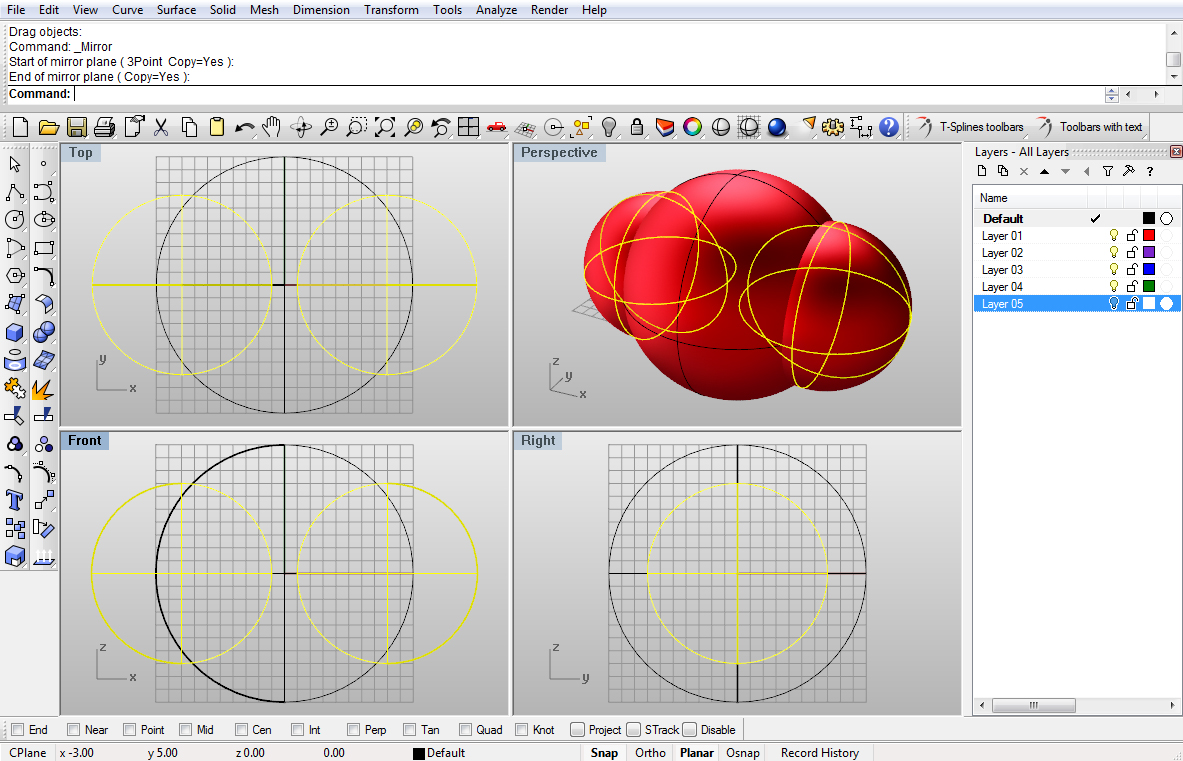
Image 58
Now, you’ve guessed it, using BooleanDifference make holes.
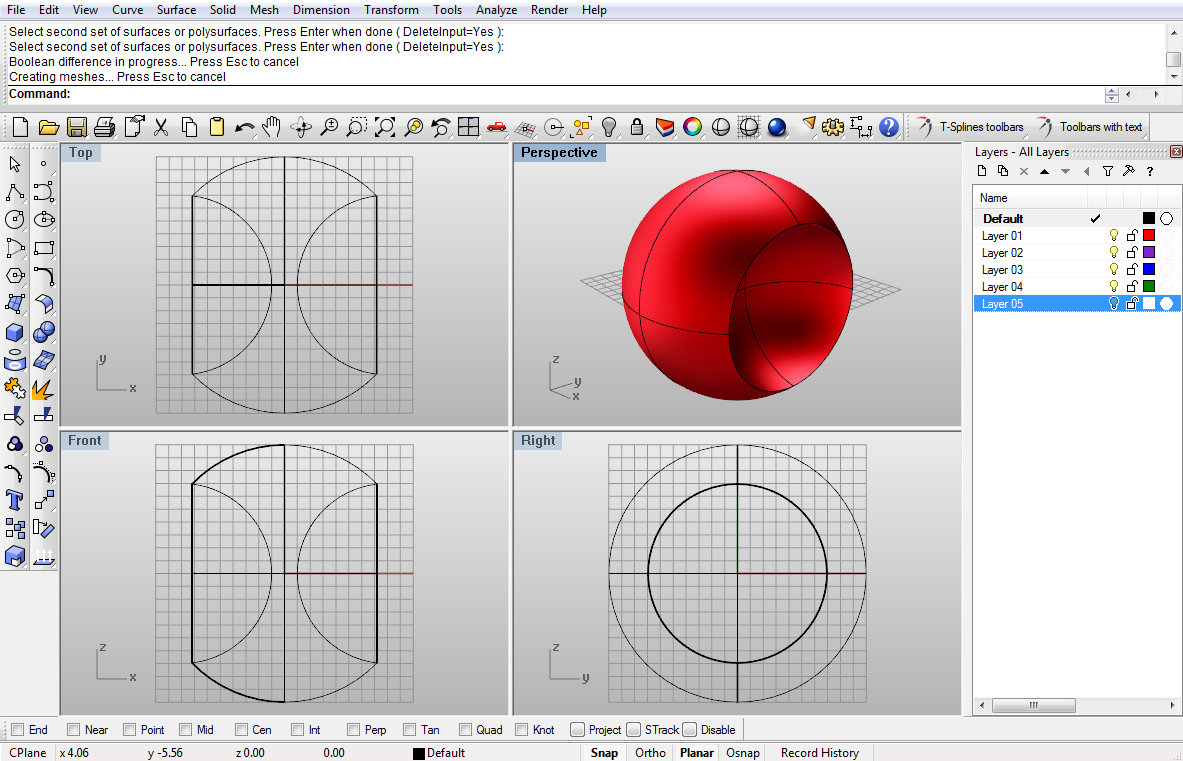
Image 59
And again, you can guess the next step, using FilletEdge we will fillet the two edges with 0.2 as radius:
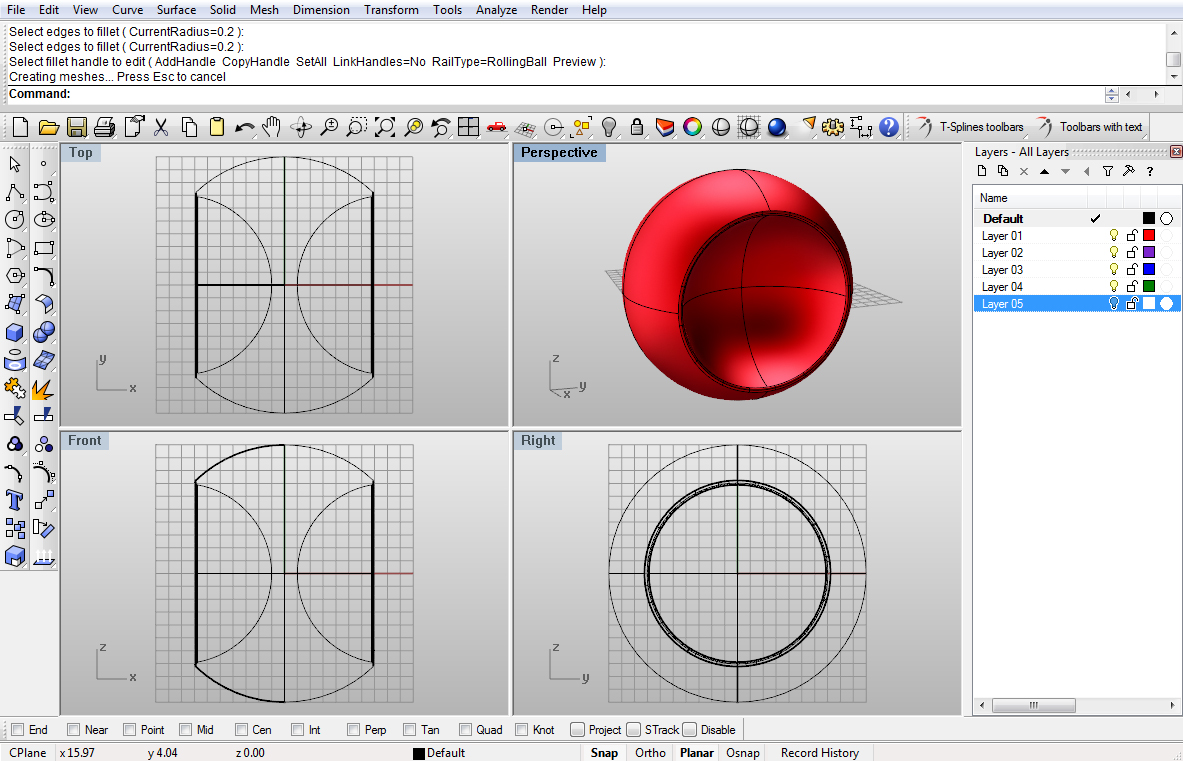
Image 60
Now, we need that wire top part from one of the previous objects. Just using Copy command copy it:
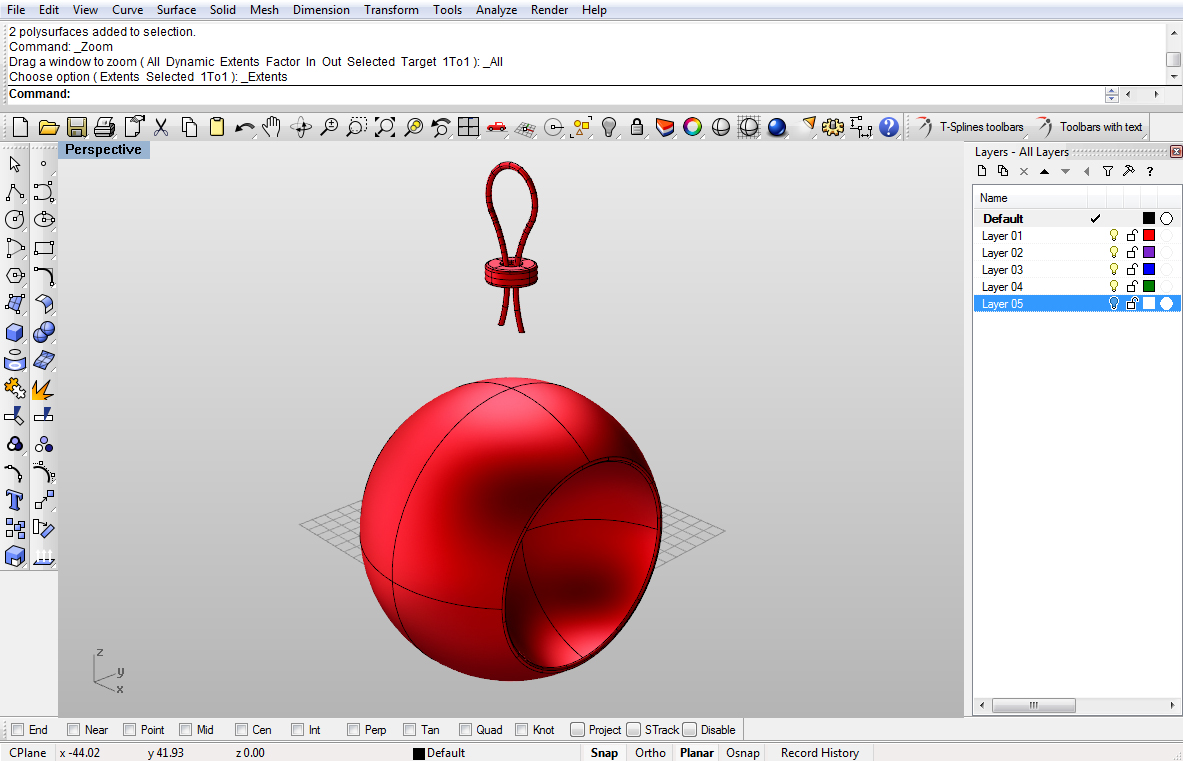
Image 61
We will now use Move command to move this wire part down
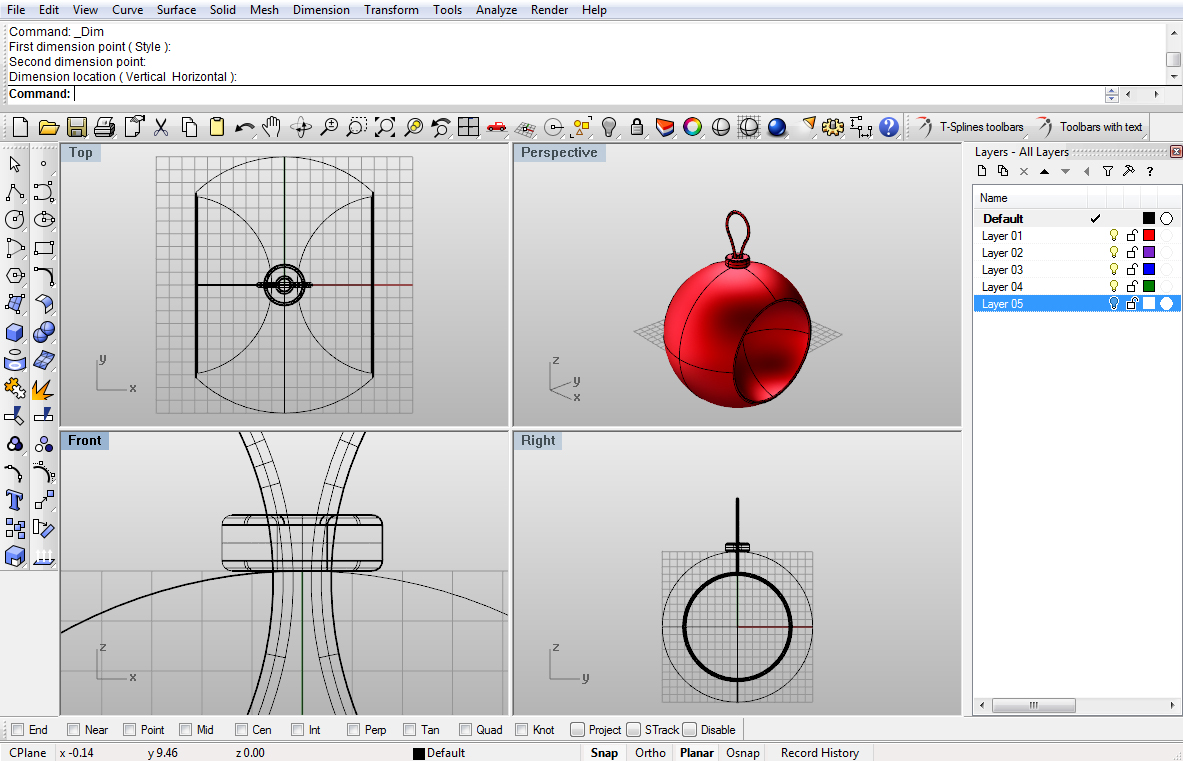
Image 62
We need to create one last Circle from Top viewport, and make it 1.5 units in radius:
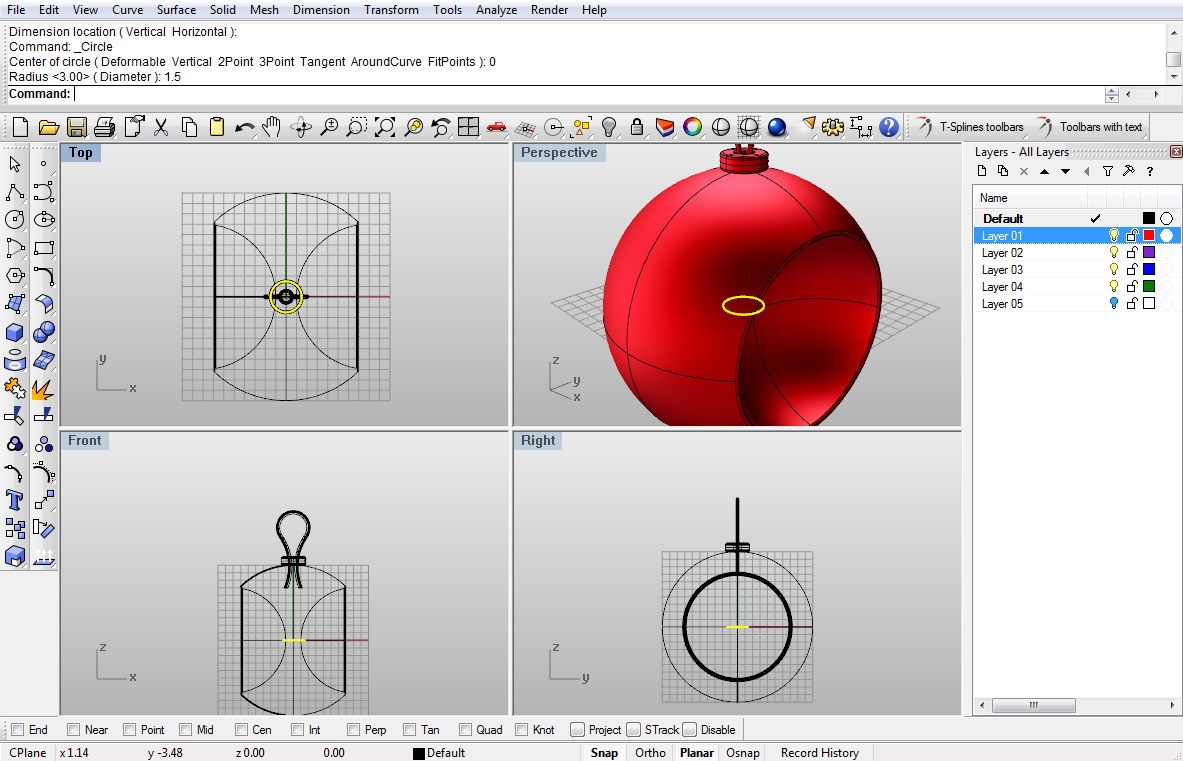
Image 63
Again, we need to Project this Circle onto our Sphere. We only need the top projected curve, so you can Delete all other after projection:
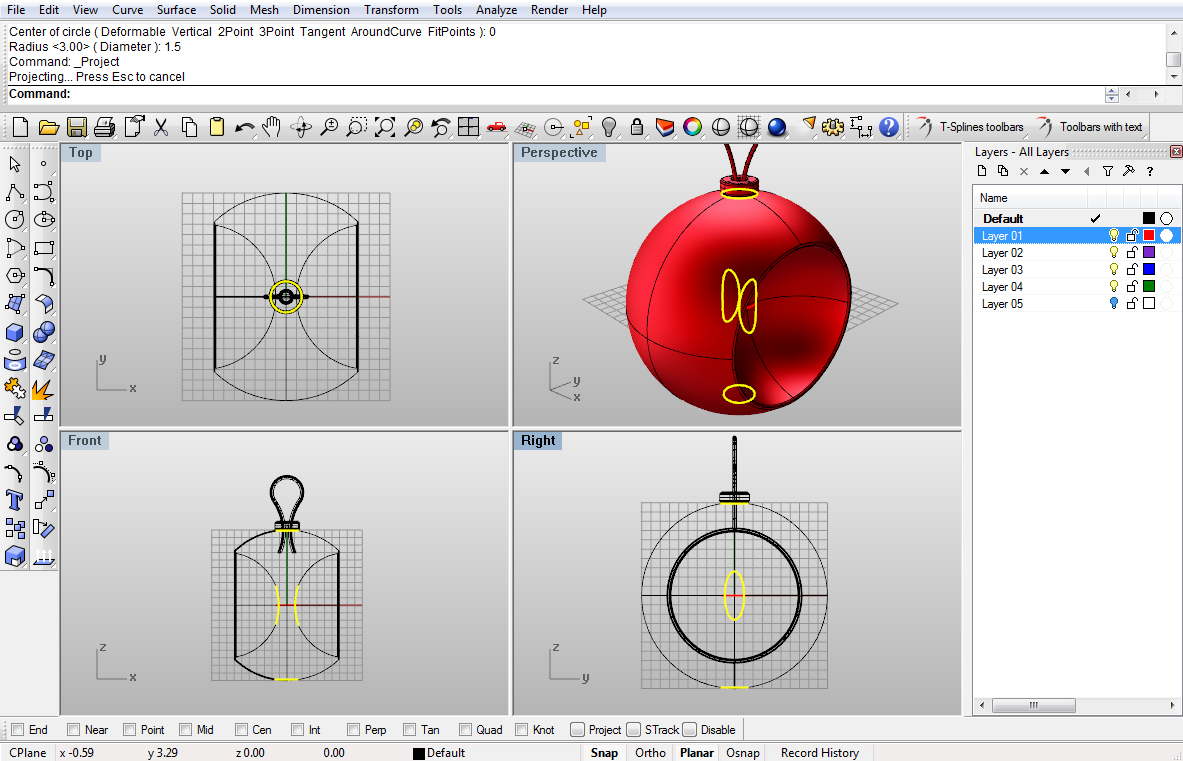
Image 64
Then, using Trim or Split command cut the top of the sphere:
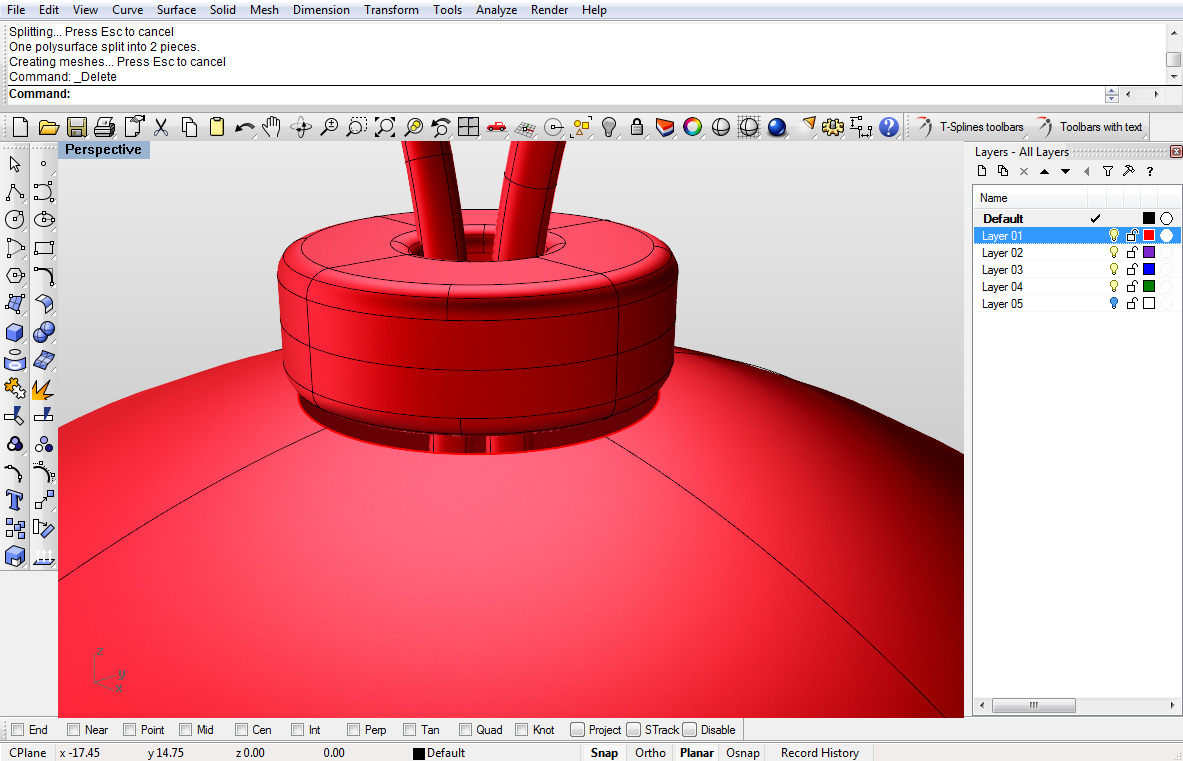
Image 65
Using ExtrudeCrv command extrude this edge up by 1 unit: (make sure you set Cap option to NO)
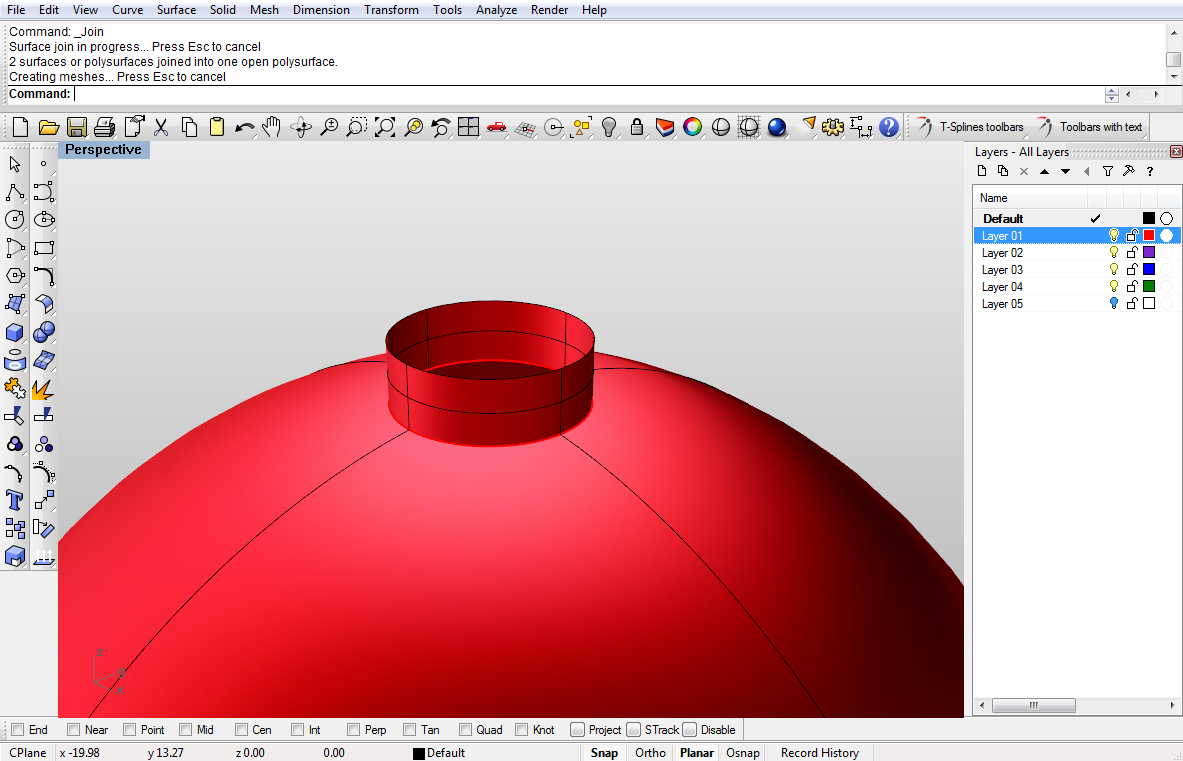
Image 66
Using Join command, join two surfaces, and with FilletEdge command we will fillet the edge with 0.3 units as radius:
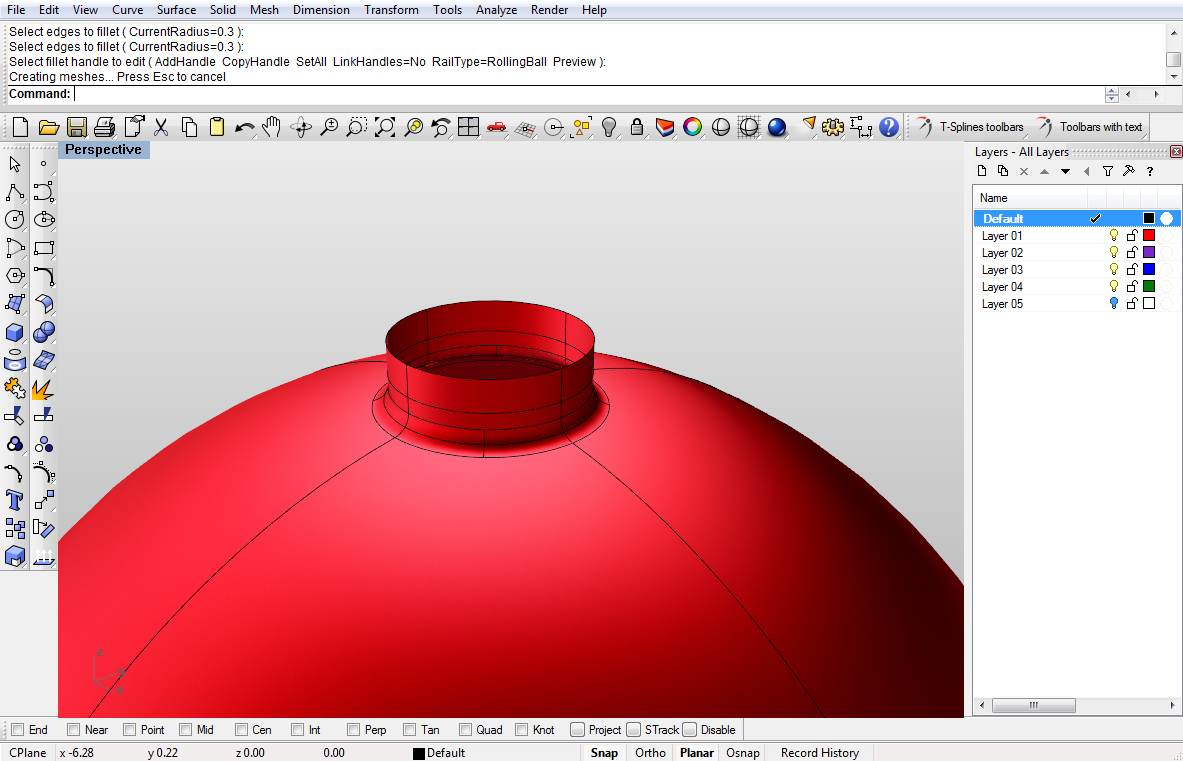
Image 68
This is it!
You should have ended up with this:
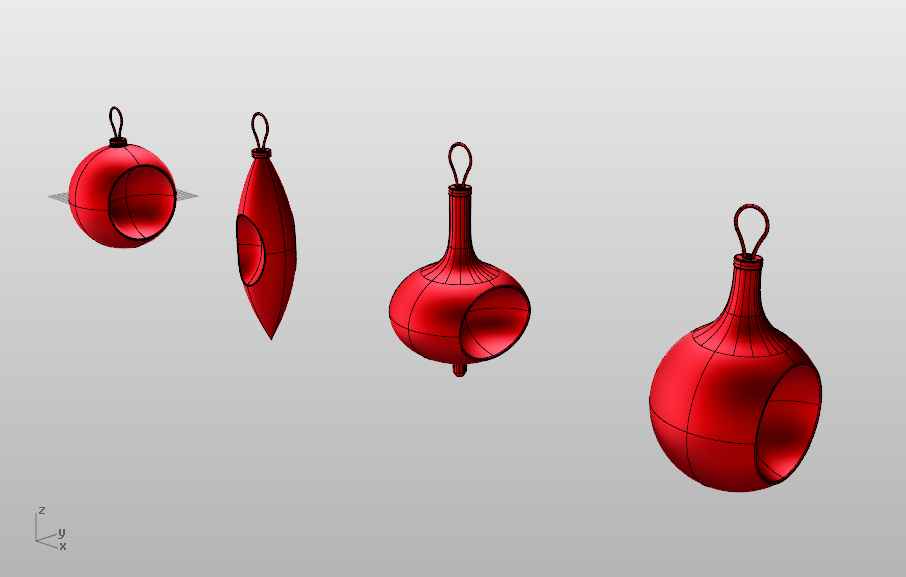
All Decorations


Thanks! This is awesome! Do you know how I can make a sphere that has defined sections? For example one that is cut into quarters or thirds? And for each section to have a different color? Should I make three spheres, cut them, and then assemble them, or is there a way for me to do that with a single sphere?
Thanks!