

October 9th
Architecture, Beginner, Modeling, Tutorials
This article has been viewed 266324 times. You can leave a response, or trackback from your own site.

Modeling a simple house Part 1


STEP 3
Ok, I think this part can easily divided in a whole new step. We will make a roof window.
What I did is hide all the layers I don’t need, and actually I ended up with only “front” layer. Next, I created another layer called “curves” and made it green, just so I can see which one is layer and which one is my line. So, from Front viewport I followed the roof outline. You should also end up with something like on the image 25 below:
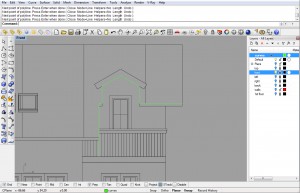
image 25
Now, we need to unhide “walls” layer and all the objects inside with Show command (if you used Hide command). Anyway, now you can hide everything except green line and the roof polysurface. Next, using Project command project the green curve onto surface. Note, you should do it either from front or back viewport as that is the direction of projection we need. Now delete one set of projected curves on the roof surface, and explode the other.
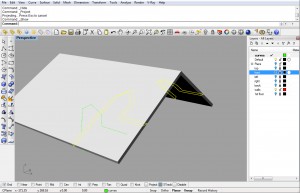
image 26
After exploding the lines we only need the one set on outer surface:
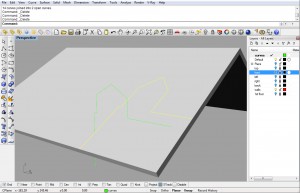
image 27
From Perspective viewport you need to extrude that line and for height use thickness of the roof:
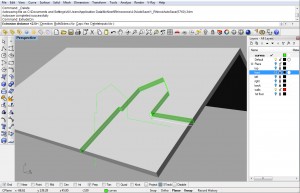
image 28
You already guessed the next step, yes, we are going to trim those two polysurfaces. Once we trim, we will joing and end up with something like on the image 29.
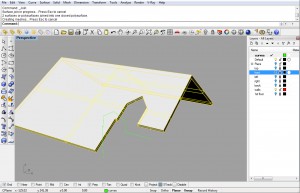
With some STrack and Perp osnap ingenuity we will create and move a roof section in place. Check out the video below if you still didn’t get it from the first time we did it.
Video 2 - smart-track
Extrude that section. And trim excess parts.
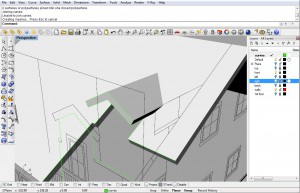
image 31
Next part of the tutorial might be tricky to some, so I will make sure to both include textual explanation with images and a video step-by-step. If you get in troubles feel free to ask a question in the comments part.
video 3 - tricky part 😉
So, here goes. First, we need to make a Box. Start a Box command and select 3point option. First and second points should be on the intersection of the wall and roof on the outer surface. The third point is on the top roof but perpendicular from the plane where first two points are. Check the images below, and if you still don’t get it go back and see the video above.
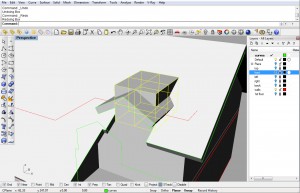
image 33
Now, copy that box, and edit it. We need three sides to be by 2.5cm smaller than the original box, and all other sides bigger than original box. I used MoveFace command, but you could easily create a rectangle from top view, offset it to inside by 2.5cm and extrude it. I don’t usually take the fastest and easiest way 😀
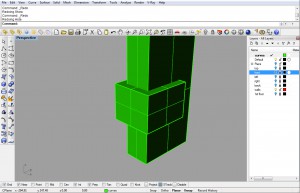
image 34
Now, using BooleanDifference command, make this box look like on the image 35:
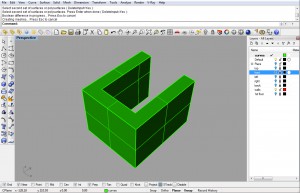
image 35
Now, create two new polylines. Like two selected (yellow ones) on the image 36:
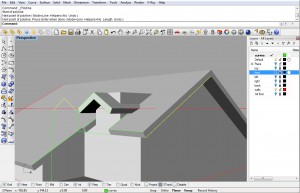
image 36
Now, to make your workspace less clutter just hide everything else except two polylines and the U box. Two lines will be used to create surfaces with witch we will trim the U box object.
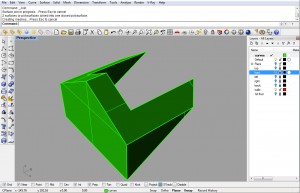
image 37
Next, and last step of this Part 1 wil be to join this part to the walls of first floor. Using BooleanUnion connect them to get this:
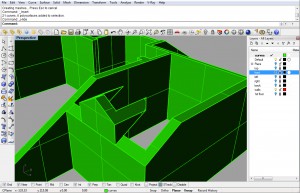
image 38
So, to wrap up this Part 1 I will show you the final image of everything we have done in this step:
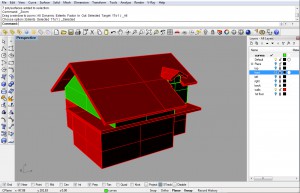
Final step of this Part 1
If you didn’t understand something in this part, please let me know in the comments below, I will do my best to explain little further.
So, for the Part 2 I have prepared for you modeling windows and doors, and balconies.
used 17 commands
BooleanDifference, BooleanUnion, CopyToClipboard, Delete, Explode, ExtrudeCrv, Group, Hide, Join, Move, Offset, Paste, Polyline, RemapCPlane, Show, Trim, Ungroup


This is a great little tutorial and is much appreciated. Thank you.
where is the part 2?
part 2 is still not online. I hope to write it soon.
[…] windows, doors, and balconies creation. If you are new to this tutorial, you should start from the Part 1 first and then continue with this […]
ok, part2 is online now.
http://www.rhino3dhelp.com/tutorials/modeling-a-simple-house-part-2/
I’m really enjoying modeling this house but I don’t understand the steps between image 21 & 22. I’m stuck there. Feel like something is missing.
*I paste from the clipboard the second roof surface and trimed the wall polysurfaces. What do I join? I asume you are refering to the wall and roof surface I just paste. What about the previous roof surface and trimed roof slab I joined? In my drawing now I have two roof surfaces, one joined to the wall polysurfaces and the other to the trimed roof slab. My model does not look like yours in image 22. Can you tell me what I’m doing wrong? Thank You.
ok, what you need to have is two objects. one object that is representing the walls of your first floor, and the second is box on top of that walls object.
By copying the roof surface, you will end up with two exact surfaces. So, just copy it, (don’t paste yet) and trim with it the upper box. Then, after trimming join and hide that box. Next, paste your surface, and trim that surface and walls object. Join that too.
That is all.
Thanks for your response Ivan, I’m going to give it another go when I get home. Really excited about this, I’m enjoying 3D modeling. Oh just have one quick question. Most of the modeling I’m going to be doing would be architectural related. What addon to Rhino would you recomemed for this? I know there are a couple available but before I purchase anything I thought I would ask you first before making any decisions. Thanks again for your assistance, its much appriciated. Ciao
You can speed up your arch modeling process with VisualARQ, but when it comes to architectural visualisations, I guess modeling shouldn’t be a problem, it is pretty easy, but rendering is a part you should work on more.
Hi. Great great work, very well explained and illustrated. I did all of this first part and now will approach second part, with Rhino evaluation. Really really great and clean workflow! Bye, hope to meet you somewhere!
GG
Hi, i am unable to download the plan 3dm file. When I click on it, it opens a text file? Am i doing something wrong?
Hi, you need to right click and choose Save As…
Excellent job, something worthwhile in Rhino for architects