

December 12th
Beginner, Modeling, Product design, Tutorials
This article has been viewed 131771 times. You can leave a response, or trackback from your own site.

Modeling LEM bar stool made easy in Rhino


STEP 3
In this step we will be creating a stool leg. Nothing too fancy, many of you would just use Cylinder solid, but hey, not me. I like to complicate things. Or simplify them? Judge for yourselves.
Before we even start creating the leg, we need to find the center of the seat. We will do it by creating a line underneath the seat. It is sort of diagonal line under the straight part of the seat (use End OSnap option):
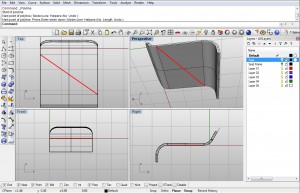
Image 23
Ok, now we need to create another line from the midpoint of this line, and make it long 7.5 units.
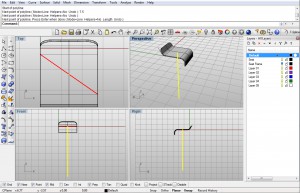
Image 24
Ok, here is a trick you can use to make this line easy. Start the PolyLine (or Line) command and using Mid OSnap option, click on the Mid point on the diagonal line. That would be your start of the line. Best way is to click in the Perspective view. Now, while still in the command, you can go to other viewports, so go to Right viewport and using Ortho option in status bar you can easily make the line straight, but before you click for the other end of the line you need to input the 7.5 value in the command line to lock the length of the line. Then click on for the second end of the line, and press enter to finish the command.
We’ll move to the leg base now, and we will create a Circle with the center in the lower End of the 7.5 units long line. And for the radius we will use half of the 2.75 which is our width of the stool. Or simply use Perp Osnap option to snap to the end of the stool (or even, click on the Diameter option in the command line, and input 2.75):
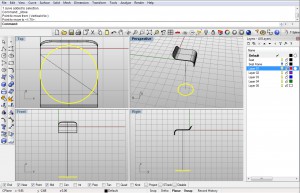
Image 25
Using ExtrudeCrv command extrude that Circle upwards by 0.1 units. If you haven’t, set the Cap to Yes.
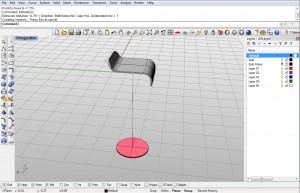
Image 26
Using FilletEdge command fillet the upper edge of the extruded circle by 0.05 units:
Using Near Osnap option, create a Point somewhere on the leg line setting the position where the width of the leg will change. As you know the leg is made out of two parts, actually two cylinders, both different radii.
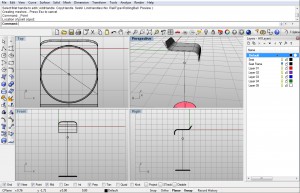
Image 28
Split that line with the Point you just created using Split command.
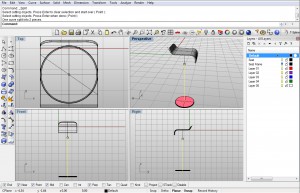
Image 29
Again, visually it doesn’t seem to be split, but if you click on each part you will see that it is now two separate lines. Just what we wanted.
Now, using Pipe command we will create “pipes” out of these two line parts. The lower pipe will have 0.2 as radius, and the upper one will have 0.08 as radius:
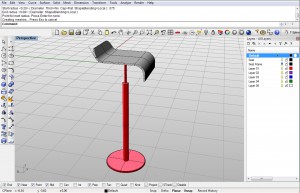
Image 30
Again, with FilletEdge command fillet the upper edge of the lower cylinder with same radius of 0.05 units (you will see that Rhino remembers your dimensions for each command, like in this case for FilletEdge):
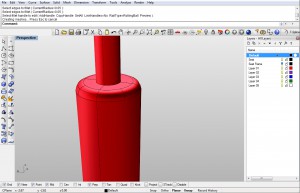
Image 31
We’re done with the stool leg, now we just need to make a few minor detailes. So go to Right viewport and using Rectangle command create a rounded rectangle 0.2×0.08 with corner radii 0.02.
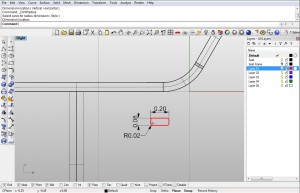
Image 32
Move that rectangle like on the image below. Move it with drag and drop or Move command. I have made the Seat Frame layer green color so you can distinct the position by eye on the image.
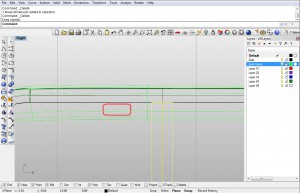
Image 33
Using Mirror command we will mirror our rounded rectangle from the center of the leg cylinder:
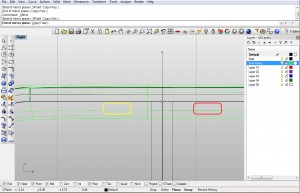
Image 34
Using ExtrudeCrv command you will extrude the two rectangles. Now, again, OSnap can help you out extrude this easily. But, you can just input 2.75 for extrusion distance as this is our stool width.I’ve snapped to the end of diagonal line:
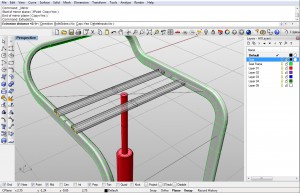
Image 35
Snapping to the end of stool’s leg line you will create a Circle with its center on the end line and 0.4 as radius:
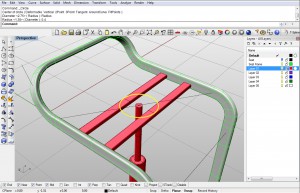
Image 36
Extrude that circle with ExtrudeCrv command down by 0.3 units. If you plan on inputing it in the command line make sure you put in the (-) minus sign so you go down:
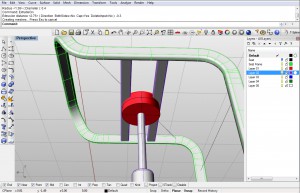
Image 37
Using Offset command we will offset the lower edge of this red cylinder and therefore create a circle which will be 0.1 units smaller than the cylinder:
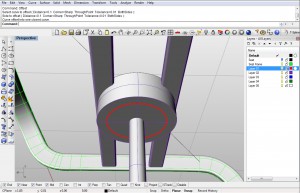
Image 38
Again, offset that circle inside by 0.2:
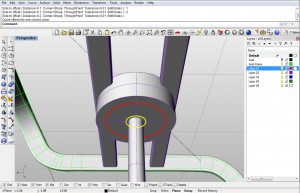
Image 39
Using Move command from either Front or right viewport move it down by 0.5 units:
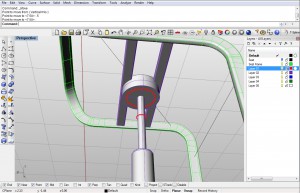
Image 40
Now with Loft command create a surface between the two circles:
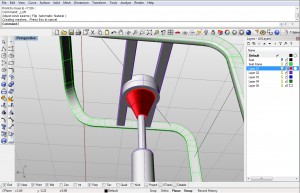
Image 41
Ok, and with Cap command close this red surface into a solid. It will add caps top and bottom.
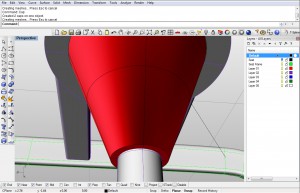
Image 42
This is it. You’re done!
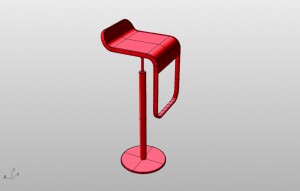
Final model

Final rendered model


Nice tutorial to start. Thanks !
Great tutorial, I enjoyed modeling this bar stool. The only problem I’m not too sure how to render and get the materials you used in the finishes.
Edit: I do have v-ray installed but not sure how it works.
Great tutorial for us beginners. As suggested by Frantz it would really help everyone out if you could supplement this with a tutorial addressing how you rendered the final image, as it looks amazing and this is a completely different beast than just creating the model. Any tips and tricks used to produce such a life-like image would be extremely helpful. Again, great tutorial and keep ’em coming!
I pretty much started Rhino from scratch with your diving knife tutorial and I’m planning to go through each one of them. That should pretty much cover most of the modelling techniques I would need. I’m really learning a lot thanks to your detailed tutorials. Thanks a lot !!!!
I thank you for this nice tutorial. All the best.
Thank you so much! 🙂 It’s great tutorial~!
It is good. The more i read, the more skillful I become. Thanks very much
Nice tutorial for beginner, but can’t do something, because my software is not PRO. I have TurboCad 14 Deluxe and the manual incluided only show tutorial to 2D. I dont know use Workplane to make 3D objects and how asembling part on 3D. If somebody can help me???????
Thank you for the tutorial! It was great!
Thaks so much! I´m studing Industrial Design and this help me a lot! but..
How did you add the wood and metal texture? it looks so real in the final picture, how did you do that?
Hey
Thanks a lot for the tutorial. It’s really helpfull. Do you have any tutorials on V-ray?
Hi ,
First of all , this is a fantastic site ! Thank you for
modeling a wind up clock tutorial ! I would like to
know if there are tutorials for vintage wind up mechanical
toys ! I am very passionate about wind up toys and
am looking forward to your response ! Thank you very much again for this
brilliant site and resources !
First, thank you for taking the time to produce this tutorial. I’m a third year ID student learning Rhino for the first time since they only teach us Alias and Solidworks in school. I’ve been using Alias Automotive for the past two years so learning Rhino is a little bit easier and different in terms of command naming. Second, the only criticism I have is the wording for some of steps. I think you should verify where the second commands to the first commands are located. Ex. After choosing OffsetSrf and pressing enter, the second command to make it a solid is also located in the same command bar. I didn’t know at first where the solid option was located and hitting enter again missing the solid command. It took me several minutes to figure it out. I would just suggest literally typing every click you make, even turning off and on the various Osnap commands. Hope that helps.
For everyone else, try using KeyShot for rendering. It is an extremely easy program to pick up.
Great tutorial! I really appreciate your effort. I am an industrial design student my self and I find what you do very helpful. So thank you very much for this!