

May 12th
Modeling, Moderate, Product design, Tutorials
This article has been viewed 163644 times. You can leave a response, or trackback from your own site.

Modeling a Desk Lamp


STEP 3
In this step we are moving up. We will model that metal legs. I don’t know how to call them.
We need another circle. You can use one of the existing as a reference for center of our new circle. Make this new circle 0.62cm in diameter.
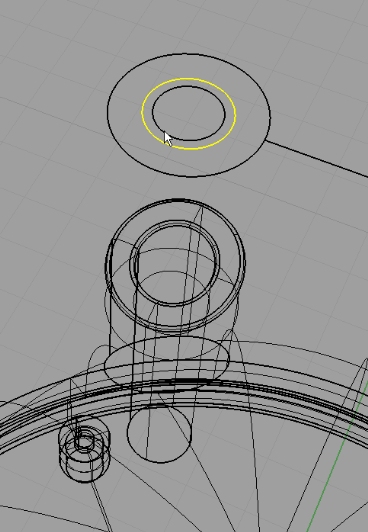
You can move it down (from front viewport) just so it is under the opening of the tube hole. We don’t want to see the starting of our “leg” surface.
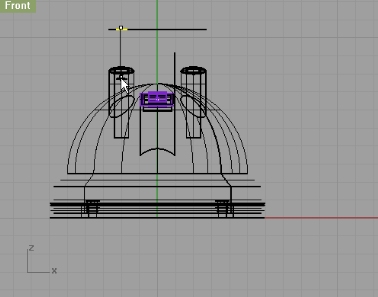
Now, make a line (either polyline or line) starting from Quad point of our newly created circle. Make it 13cm long.
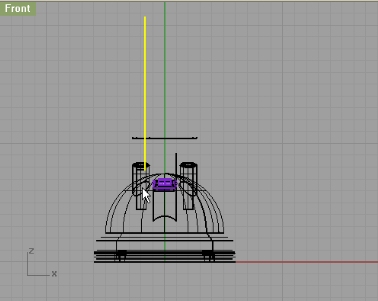
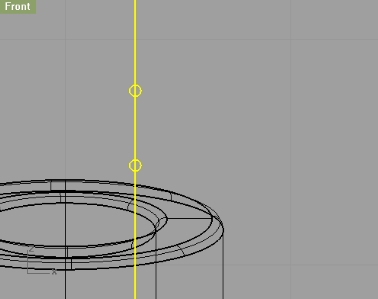
Make two circles on that line, and make them 0.05cm in diameter. The distance is not that important, just position them like on the image below:
Next, trim off the outer semi-circle, and fillet the corners with 0.05cm radius:
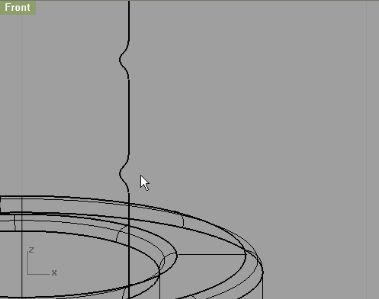
Using sweep1 use the circle as rail, and this line as cross section curve.
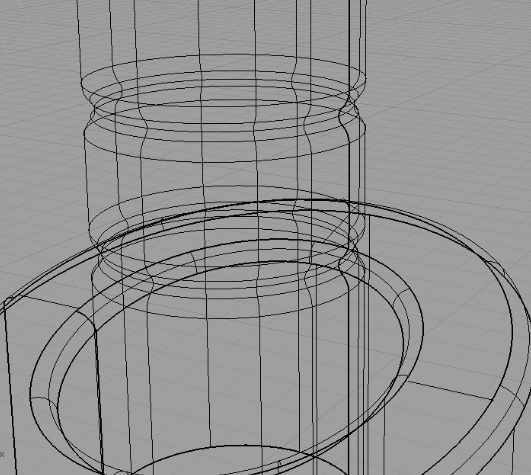
Now, you will probably run into some weird problems. Like, maybe if you try to Shade the viewport, you will notice that you can’t see the little holes you just made. Well, that isn’t your fault, it is just because the Meshing in Rhino is set to default, that is low quality, better performance. But if you go to Tools->Options and under Mesh select Custom, then you will get good Meshing, but somewhat slower performance.
Now, create another circle on top of our leg tube. Use Cen osnap option. Make this one 0.52cm in diameter.
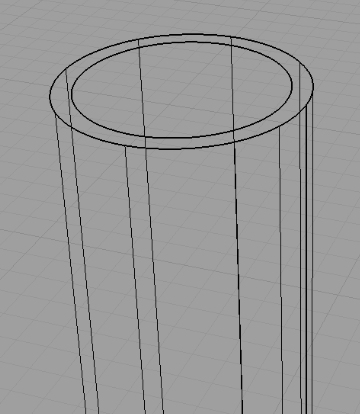
Extrude that newly created circle by 11.5cm up and move that circle you used for extrusion up a little (from front viewport):
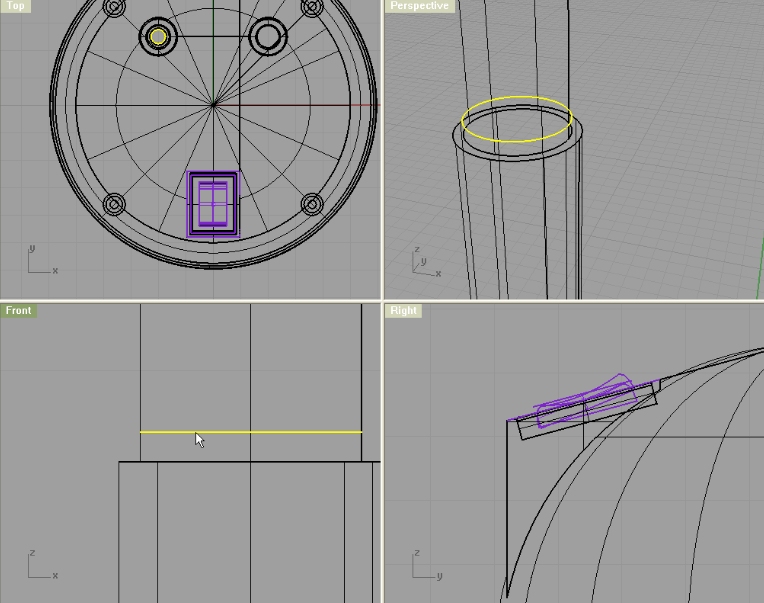
Connect the circle and edge of extruded surface with InterpCrv. Turn on the control points, and edit the curve:
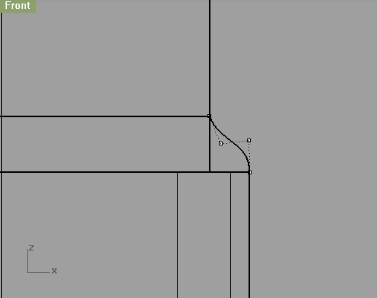
Using sweep2 select edited curve as cross section, and circle and tube edge as rails.
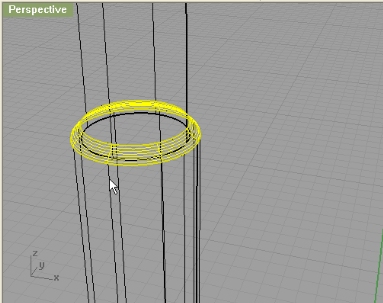
Mirror that lower leg, and move the original circle up:
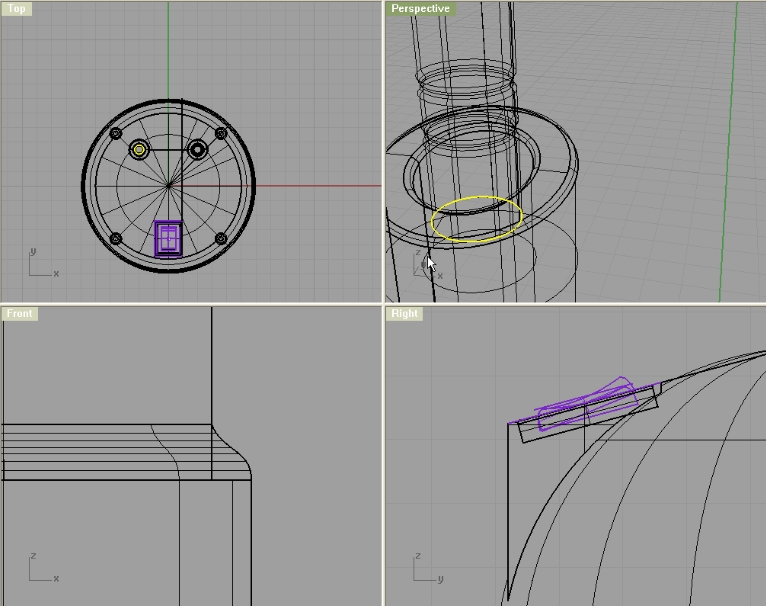
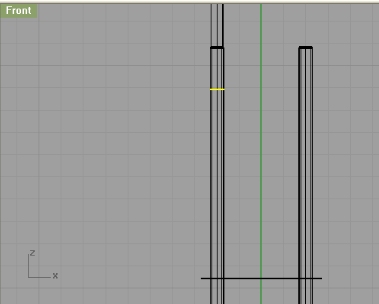
Now, copy and paste that circle, and move it down by 2.5cm from front viewport.
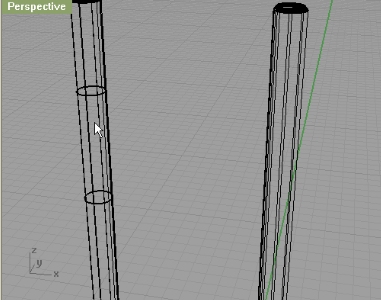
Now, create another circle, this one needs to be 0.9cm in diameter.
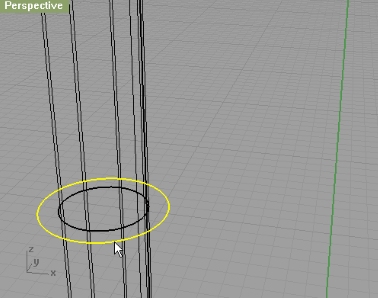
Position it like on the image below:
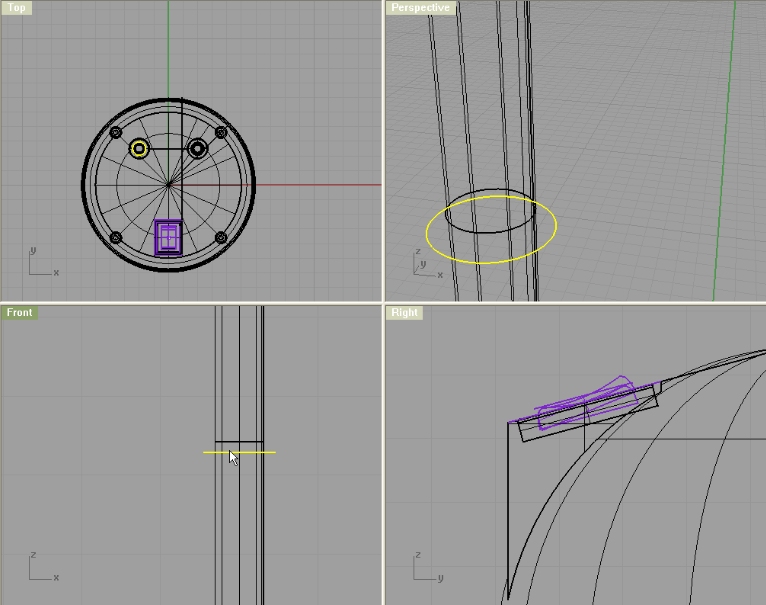
Copy it and move it up:
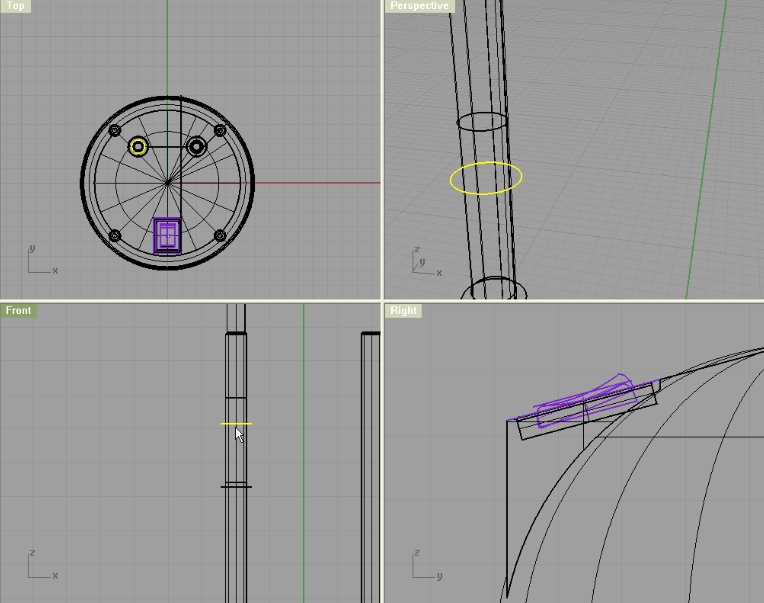
Next, use loft on selected circles, and as a Style option choose Loose:
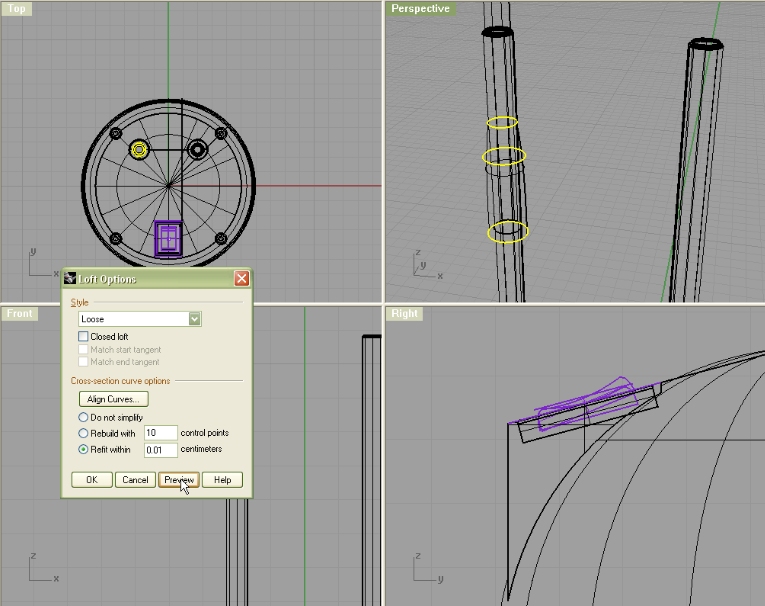
On lower two circles use loft again:
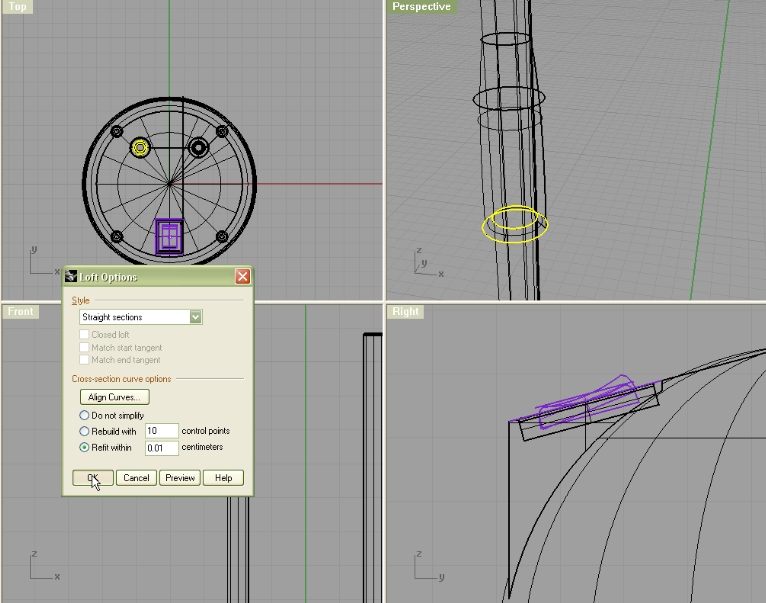
Make another loft between upper and lower circle:
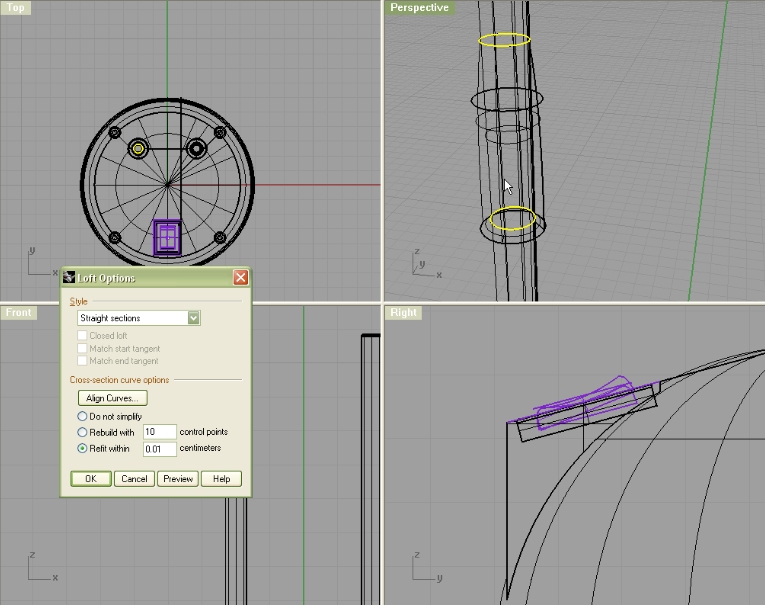
Now, make a rectangle 0.35cm in width, and make it long enough so you can trim the surface we just made (from top viewport):
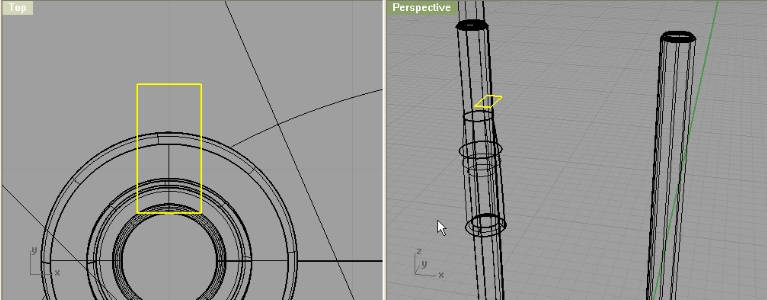
Extrude it just so it is bigger than the surface we are going to trim:
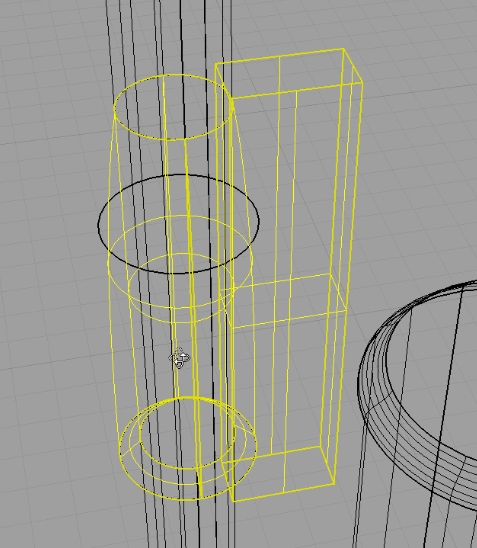
Now, clearly, this extruded rectangle is still not positioned right, so we will move it towards inside so the trim goes well:
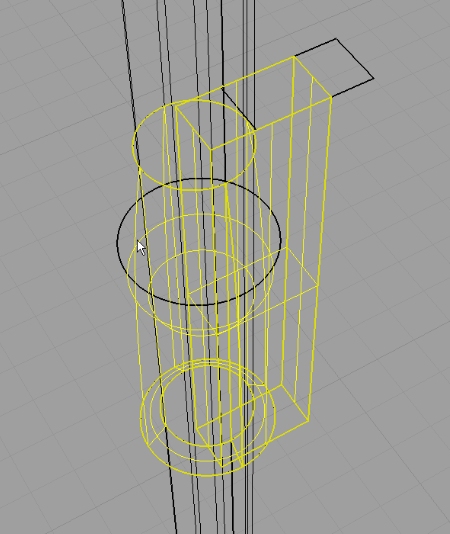
Now, trim the hole in our surface 😀
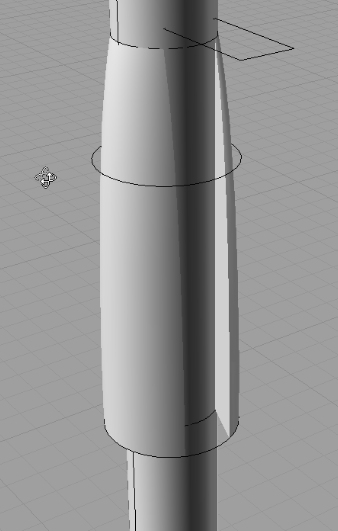
Now, join everything, and mirror:
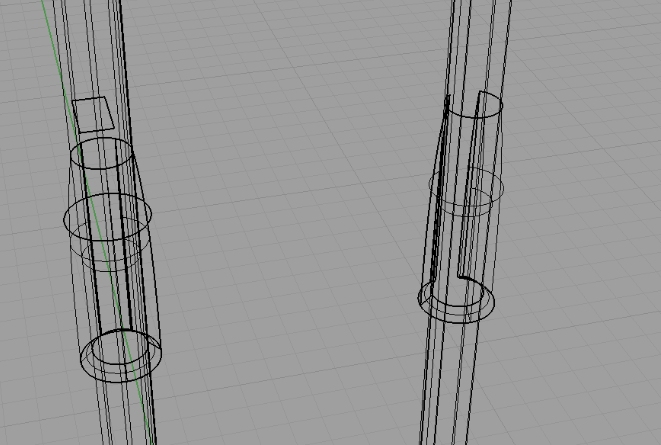
Now, create a line between those two parts. Quad osnap option would come in really handy here:
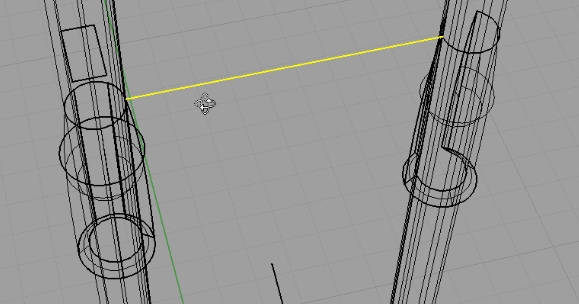
Now we need to extend this line’s both ends:
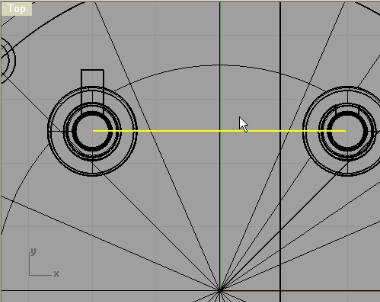
Offset that line on both sides by 0.075cm. Then create two lines each connecting two ends of opposite offset lines:
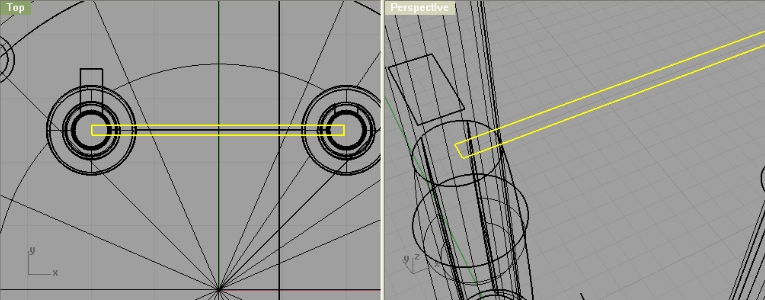
Extrude that closed curve (set cap to yes), and make it high as your two tubular surfaces.
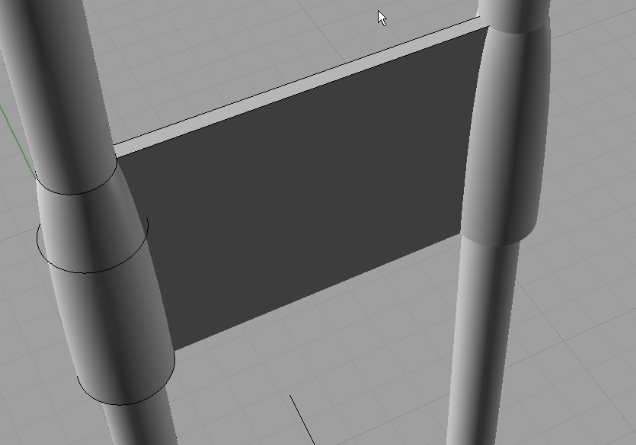
If you like, you can trim two tubular with this rectangle object.
Now, lets continue with the legs. We have one leg to mirror, so mirror it:
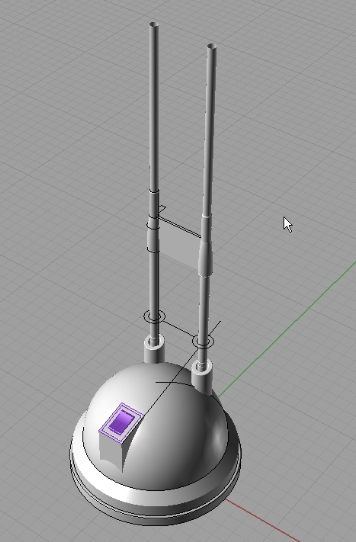
On top of one leg create another circle, and make it 0.45cm in diameter and then you extrude it by 11.5cm.
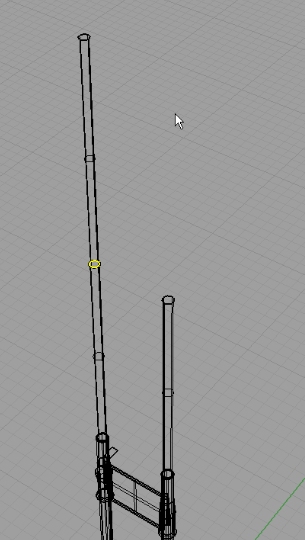
Now, we will create an Arc between two legs (the upper one, and the one below it):
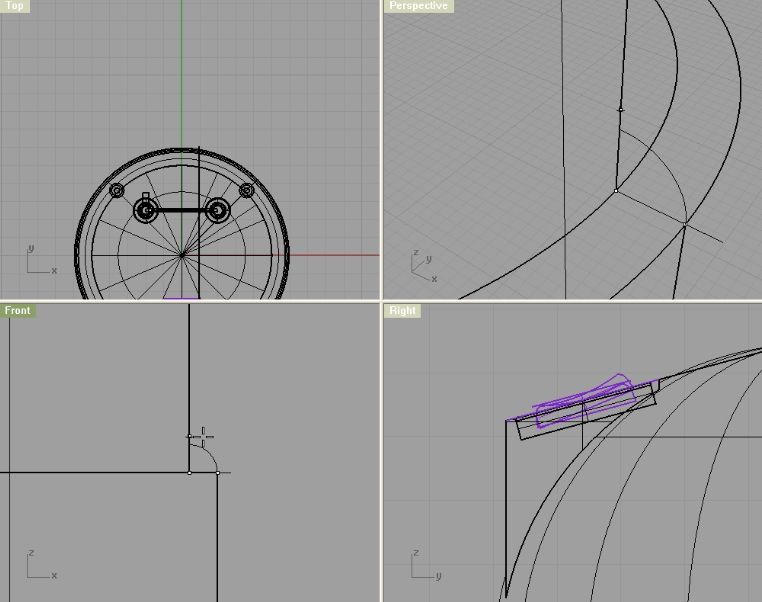
Using sweep1 command, make a surface:
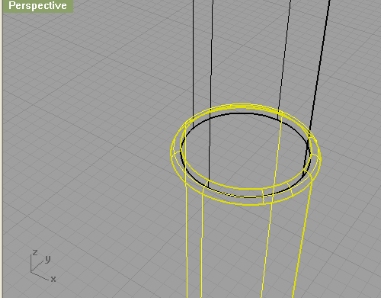
Now, on top of the upper leg, create another circle 0.6cm in diameter. Extrude it upwards by 1.25cm:
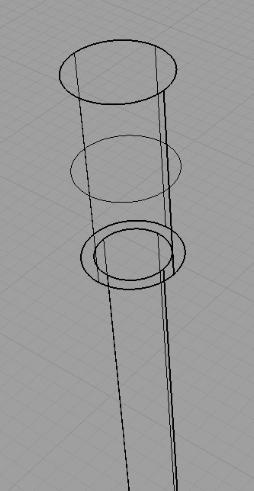
On top of that, create an arc for a semi-sphere cap (from front viewport):
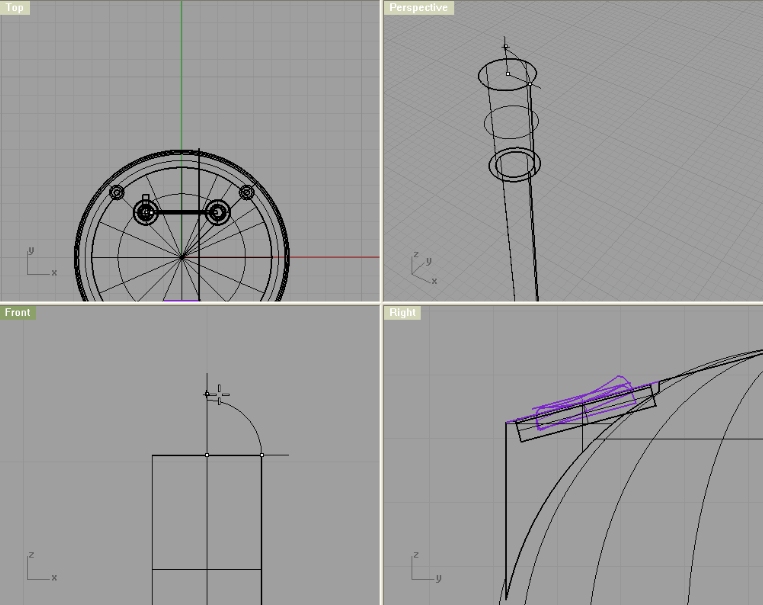
Using sweep1 select an arc as cross section curve, and circle edge as rail:
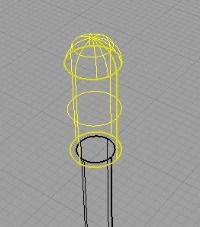
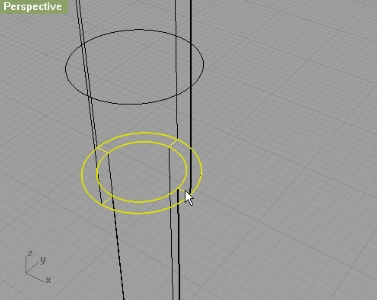
Cap the two lower circular edges with PlanarSrf:
From right viewport create a circle 0.4cm in diameter. Extrude it so it goes out of your capped object:
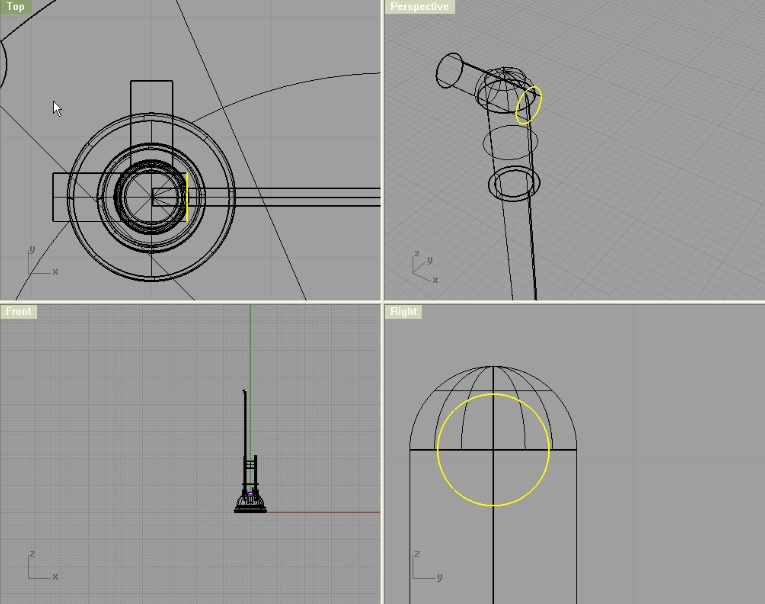
Now, trim off the inside of this tube, and the tube parts that go outside your leg :
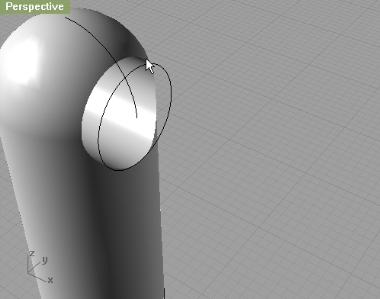
From top viewport create a rectangle, and make its width 0.2cm, and length just enough so it goes out of your leg:
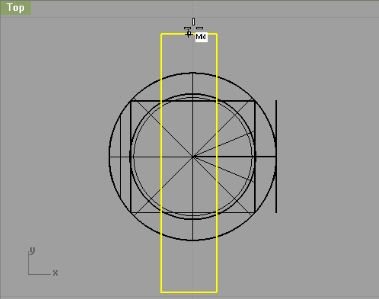
First, position it using Mid option in Osnap, then like on the image below:
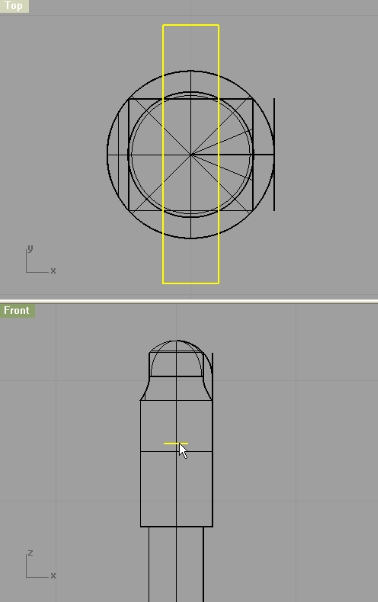
Extrude this rectangle (you should have cap set to yes, but if you don’t, set it to yes):
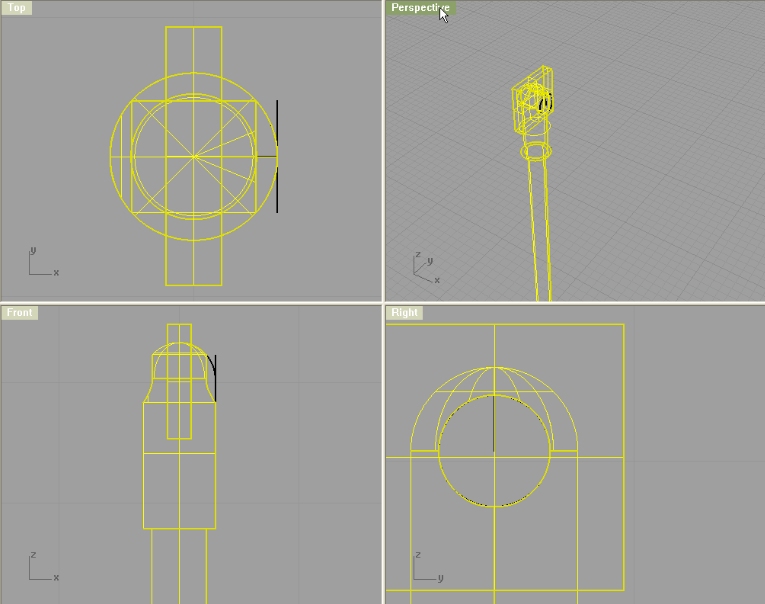
Trim, so you get the hole in your “leg” :
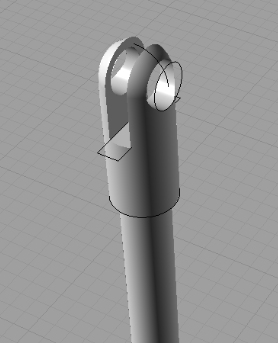
Mirror the parts we didn’t mirror and you should have something like in the image below, meaning this step has come to an end:
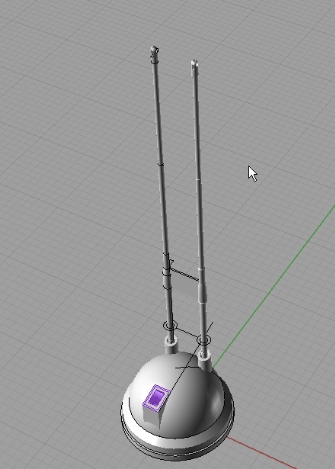


Congratulations!
I like your side, news, video tutorials…etc. But in tutorials I would include also .pdf tutorial on the end (it is much easier to read and to see the pictures).
Keep with good work!
Best regards,
uros
well thanks. I’ll think about pdf, if theres a good and fast solution to creating pdfs then fine 😉
thanks, I just hope few more ppl would find my efforts worth and help me out with writing tutorials, so I can learn something too 😉
hey thanks alot for ur tutorials i reallyyy learned alot. but i just want to ask u a tinny favor …iz it possible to put the photos little bit big size. i know if i ckick i can see big size but when iam printing they became small:((( sorrri to asked alot
Thanks a Lot Dude! It was very joyful
Its impressive the way you make your tutorials… so detailed
thanks for your tuts!!!!
great rhino tutorial, especially the shelling. i have a question: in a few places (e.g. third step on page 4) you do a trim that also seem to create fill surfaces. e.g. when you trim the three extruded rectangles through the shelled lamp head, you appear to be getting a solid result. When I do it, I have to creat the vertical fill surfaces by hand. Is this something you’re leaving out, or am I misunderstanding?
thanks again, these are the best notes i’ve ever seen. i’d love to see pics & text of how you set them up, & how you measure the object for the modeling.
well, since we are extruding those three rectangles, and trimming the extruded surfaces with the shell, I suppose either you are doing something wrong, or you did something wrong 😉 but keep trying
Whenever I *trim* a solid with another entity (curve, surface, or solid) the result never seems to be closed; only if I do a *boolean subtract* is the result closed. E.g. make a cube and trim out a hole with an extruded circle: there will be two circular holes in the cube’s faces, but no interior cylindrical wall. If you send me an email address I’ll send you pictures of what I mean. But I really *want* it to work like you say! Thanks for any explanation…
Bad Ass! Learned a lot during this tutorial!
Oh, wait, I see what you’re saying: trim A to B then trim B to A and join…right?
well, boolean operations work actually the same as trim and join, but you do it in one step and one command and sometimes avoid unnecessary problems. I am just too much used to trim so I often forget to use boolean 😀
teach me to know more about rhino.
It would be nice if the blueprints weren’t in pdf… ya know so you could actually use it maybe.. just a thought. It would be much easier to make the body shapes using profile curves from a bitmap but you can’t get a bitmap.
your tuts suck. I could getter better tuts from a retarded aspergers baby
You can look up on vector graphics on wikipedia if you can’t grasp how vector is more powerful than raster. http://en.wikipedia.org/wiki/Vector_graphics
And in case you didn’t know, you can export pdf-s into jpeg images which then you can insert into Rhino.
With a little more “advanced” rocket science, you can actually import vector graphics as curves into Rhino, which is another reason why I provide vectors.
Good tutorials - thanks! I agree with the presentation though - it´s difficult to keep flipping betweeen instructions and the images for clarification. Maybe you could use a plugin like Simpleviewer so that when you click on the image, it is overlaid over the current page at a large size.
another good tutorial!! thanks a lot again. but this time I had so much trouble with triming two surfaces in the 4th step. I can not trim just with one click, I mean after first trim there is still surfaces that I have to click on to continue triming. is it the only way or am I making a mistake? please give us some tips about triming…
Great tutorial.
You can view my render in the forum 🙂
Nice tutorial…:) Is there something like video of this?:)
Do you know if Rhino for OSX has the PlanarSrf command at this point. I am a newbie and cannot connect the surfaces making up the small circle to the big in part ten of step 1
Great tutotial.
I can really use some steps for my next project, on which I now was stuck.
Do you have also vids on YouTube?
Best regards Paul
what is Rhino OS X
Is this a 3d software