

March 15th
Beginner, Modeling, Product design, Tutorials
This article has been viewed 71293 times. You can leave a response, or trackback from your own site.

Modeling Kent hair brush


STEP 3
First, we need to make two cross-section curves, using InterpCrv command, and with some Osnap help, we will make the curves, like on the image below:

Move the inner control points up by 1 unit. And split the rounded rectangle with the longer curve (you may have to turn off the control points).
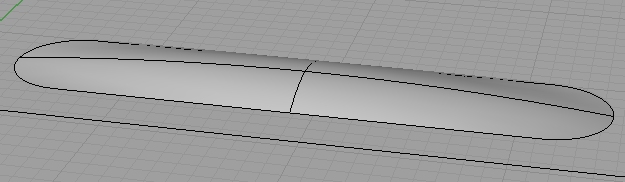
Using patch command, create a surface out of cross-section (cross) curves, and one half of rounded rectangle. You can repeat that step for the other side, or just use mirror command. Then join the two surfaces.
Next, from the top view, make a 45 degree line. You might find very useful Ortho option, but on default, it only works with 90 degree lines. So, click right mouse button on Ortho, and click on Settings from the drop down menu. There you will find a Ortho snap every 90 degrees option, where you can set 45…
I copied the line with Copy command, and I made the lines apart 2.5 units. Check the image below:
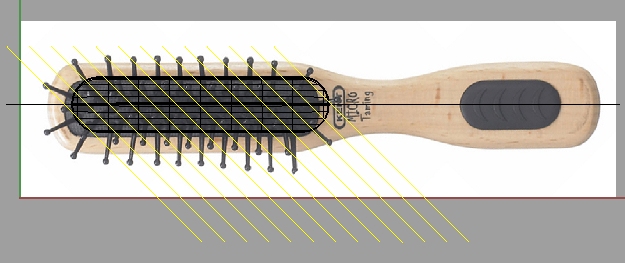
You can mirror those lines, and position them like this:
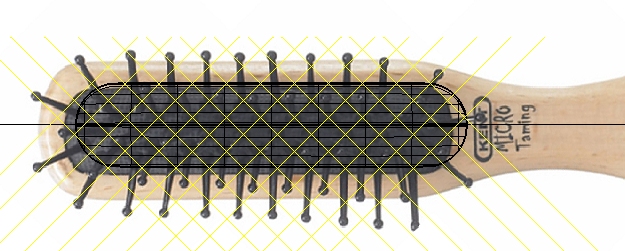
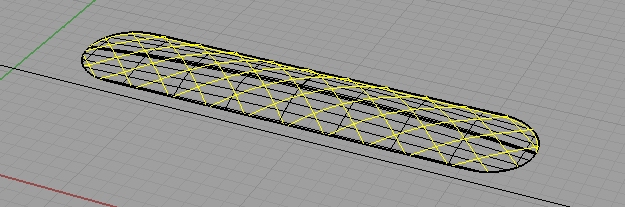
Now, having selected those lines, select the cushion surface too, and use Project command, so your lines project onto the surface. Then you can delete the source lines.
Then, create in your top viewport a circle with diameter of 1.3 units. Next, in your front viewport, create a curve like this:
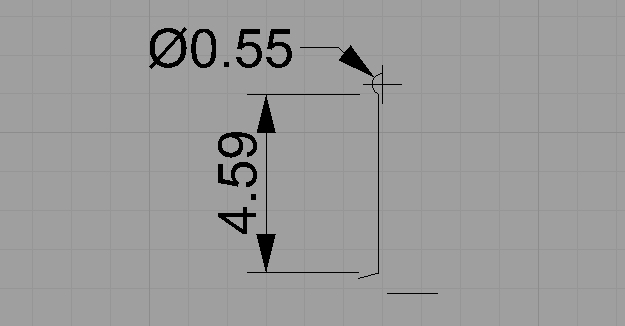
Using Revolve command, revolve that curve around its far right axis, to create something like this:
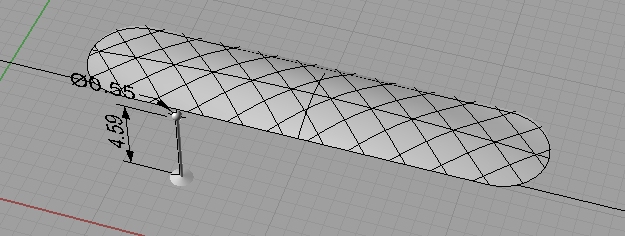
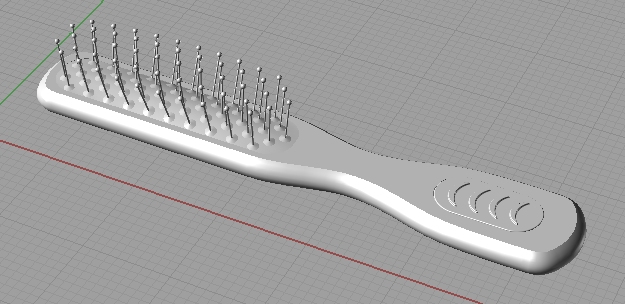
With OrientSrf command (with copy option turned on) position this pin on the intersections of projected lines. It will be very helpful if you had only Int option turned on in your Osnap.
And we are done!


How do i hide the bitmap image afterwards?
there isnt a makehole command in rhino 3
yeah, sorry for that, MakeHole is since Rhino v4.0.
For hiding the bitmap go to View->Background Bitmap->Hide
“Next, using two closed curves, and this profile curve, create connecting surface. We’ll do that using Sweep2 command.”
havin’ trouble with that because i cant make a single closed curve out of that jumble of curves.
please help
this is pretty simple. There shouldn’t be a jumble of curves, there should only be two the same outline curves, and one (arc-like) curve. And when you do a sweep2 you need to specify those two outline (closed) curves as two rails, and that arc-like curve as cross section curve.
You should press F1 when in sweep2 command to get more help for that command.
how can i make the last step i have the pins and body but i cant connect pins and boday as you told …. could u help me
if you have a pin, and the cushion surface, then using OrientOnSrf position your pins at the crossings of 45 degree lines
hey thanks and i have ony 1 pin actually i made others manually could u tellme how did u do,? i fallow the steps but coundt do like u , i mean count ahve pins , i made them copy paste manuallt thanks
maybe I have confused you when I mistyped the command. It should be OrientOnSrf. So, when you start that command you get the options window in which you have Copy objects checkbox, and ther you check, so you copy and orient your pins on the “cushion” surface.
very interesting tutorial!
thanks for your work man 🙂
i had only one problem… it never let me fillet the lower edges of the grip handle
don’t know why..
the orient on surface is a great command ^^
never used before
Another great one. Why you didn’t made some kind of musician instrument, like guitar?
Very cool tutorial… i got it right the first time. Thanks!
thanks. its a very good beginning lesson. now i only have to memorise the commands.
Hey… Thanks for your video 🙂 Lets say I have made a cube, how can i divide the cube into different colours (around 3) when I render?